


Get quote
Get Free Consultation!
We are ready to answer right now! free consultation.
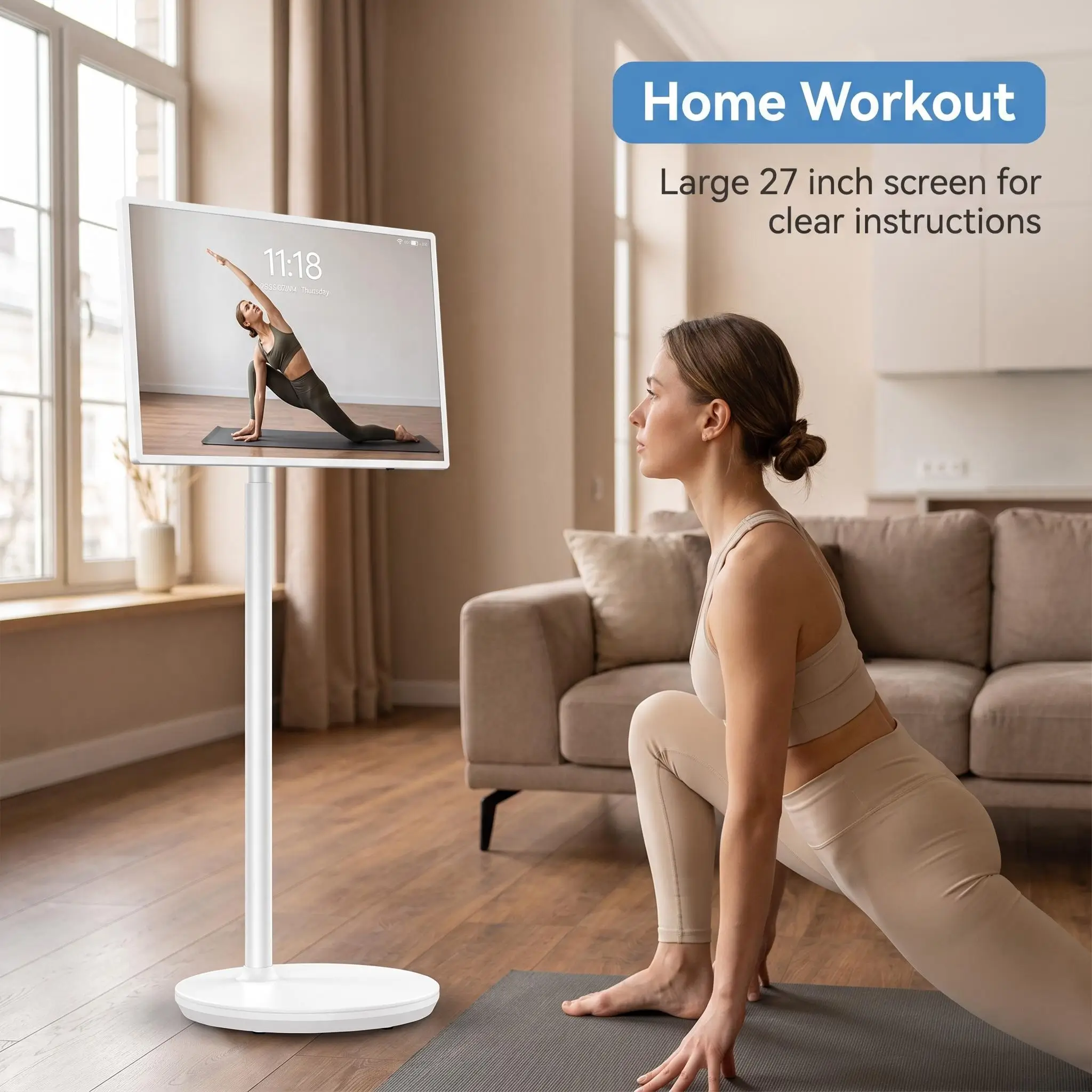
A rotatable touch smart display manufacturer should demonstrate the interaction your customer will complete, including what happens when the screen changes orientation. A presentation, a product selection page and a restaurant menu can share the same movable display while placing different demands on its application, stand and connections. Start with that activity, then compare the actual model configuration. The LINGHUFOX examples below distinguish published specifications from features that still need confirmation. The proposed demonstrations are acceptance steps, not reports of tests we have performed.
Describe who operates the display and what a successful session looks like before choosing its size. A staff member guiding one visitor can adjust the screen deliberately. A customer browsing alone needs an interface that explains itself. A menu viewed from several tables might never need to rotate during service.
| Application | What the display must make easy | Useful demonstration |
|---|---|---|
| Moving presentation | Positioning the picture for a small audience and keeping the presentation available | Move to the intended room, reconnect if needed and resume the selected slide |
| Customer selection | Reading options, making a deliberate choice and recovering from a wrong tap | Select an option, rotate, go back and confirm the original choice remains understandable |
| Menu or information board | Showing the intended layout consistently from the viewing position | Leave the chosen orientation in place and check the smallest essential text |
For a meeting or showroom demonstration, the useful benefit is bringing the picture to the discussion. Decide whether the presentation runs on the display itself or comes from another device. The second arrangement introduces a connection requirement that a product photo cannot resolve. Include sound if the presentation depends on it, and identify who will move and position the unit.
For a product catalogue, judge the category list, product detail and return path together. A responsive home screen is insufficient if the next page has tiny controls or opens an awkward keyboard. Where the content is web based, W3C’s input guidance explains why complex or timed gestures can exclude users. Provide a straightforward way to choose and navigate; the presence of multi-touch hardware does not make every gesture appropriate.
Also define where one visitor’s session ends. A shared product browser may need a clear route back to its starting page, while a staff-led consultation may need to keep the current comparison open. Demonstrate the intended reset with sample information. Do not assume that an installed browser or an Android home screen already provides this application behaviour.
For menu display, an agreed orientation can simplify daily operation. Rotation is then a setup convenience, not something customers should have to manage. Compare the movable form with a permanent display position if the menu rarely moves. Additional movement is valuable only when the location or activity benefits from it.
LINGHUFOX’s 21.5-inch rotatable touch smart display lists a 1080 × 1920 IPS panel, 10-point capacitive touch, Android 12, 4 GB RAM and 64 GB storage. Brightness is listed at 250–300 cd/m². These details are useful for matching an application build and judging the picture in the planned room; they do not establish outdoor visibility or compatibility with every Android application.
Its movement descriptions require careful reading. The page lists support for a 90° gravity sensor and separately describes a movable base with 360° rotation adjustment. Those are different statements. Confirm which assembly moves, how the screen is supported and what the application actually does when the orientation changes. Do not turn the two figures into a claim about unrestricted movement in every direction.
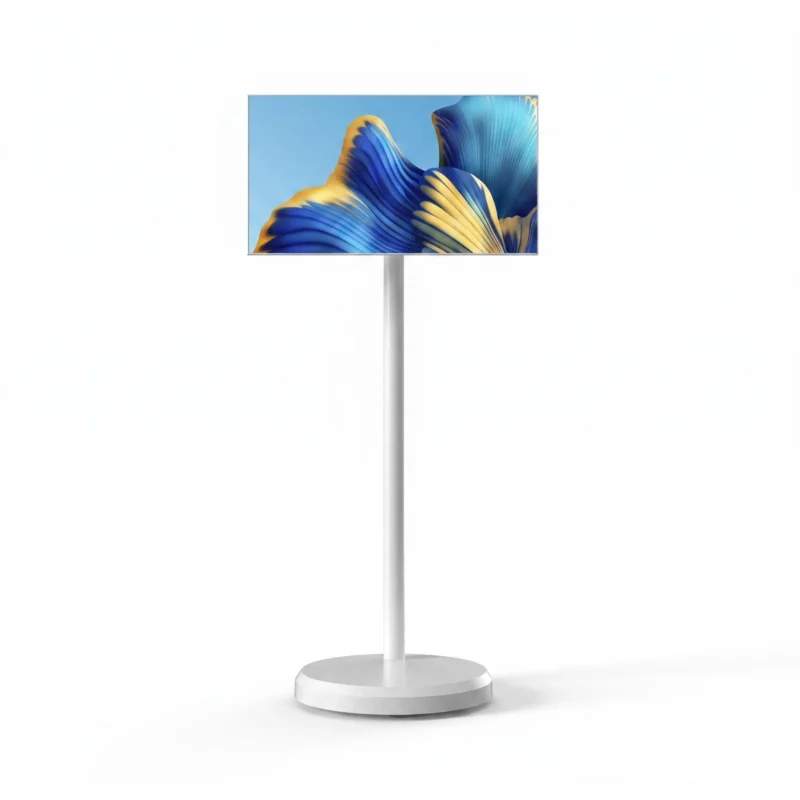
The 27-inch model is described for portrait and landscape viewing on a rolling stand, with applications including presentations, exercise guidance and hospitality menus. The reviewed description does not provide the same detailed operating system, battery, brightness or port table. Treat those fields as unanswered for the offered configuration. A larger diagonal does not demonstrate that it contains the same electronics as the 21.5-inch unit.
The 32-inch model lists a 1920 × 1080 panel, 350 cd/m² brightness, 10-point projected capacitive touch and Android 11 with an RK3566 platform. Its stated adjustments are 90° screen rotation, 22° up/down tilt and 170 mm height adjustment. The page also lists five built-in wheels and a 230 Wh rechargeable lithium iron phosphate battery. These are model-specific facts, not a promise of the same stand travel or battery arrangement throughout the range.
Match these differences to the activity. An application requirement can decide between two platforms before screen size does. Height and tilt matter when staff and visitors operate the same display from different positions. Battery capacity matters for movement away from an outlet, but the accepted operating period must still be demonstrated with the intended application, brightness and connections.
A successful orientation demonstration should begin after the user has done something worth preserving. Opening the home screen, rotating and seeing another home screen proves little about a browsing session. Use the actual application build and the relevant language, with realistic product names and the longest text the project expects to display.
On Android, an orientation change can cause the application activity to be recreated. Android’s configuration-change documentation explains that applications must preserve relevant user state through such changes. For the buyer, the practical question is whether the selected category, entered information or current presentation position survives. A gravity sensor and a turning screen cannot answer that software question.
For a showroom catalogue, open a category, scroll to a product and select a colour if that function exists. Turn the screen within its approved adjustment range, then check the page and selection. Repeat the return journey. If the content intentionally uses only one orientation, verify that it remains readable and that staff understand the intended restriction.
For a guided presentation, pause on a detailed slide before turning. Check captions, the current page and any playback controls. For a menu, compare a long item name, its price and a note beneath it. The useful evidence is a record of the complete screen before and after the change, associated with the application version and model used.
Look for controls pushed outside the visible area, oversized blank margins and text that becomes too small after the layout changes. Open the on-screen keyboard where the activity includes search or data entry. The field being edited, its instructions and the next action should remain understandable together. Turning the hardware is only useful when the customer can still finish the task.
Keep visual layout and saved choices as separate observations. A page can retain a selected product while hiding its confirmation control. It can also look correct after rotation while silently clearing the selection. Recording both outcomes helps the application provider identify the actual problem instead of treating every failure as a screen fault.
Include a temporarily unavailable item or image if the catalogue depends on a network service. The visitor should be able to understand the situation and return to a usable screen. Agree which content is available without a connection and which requires a live service. A local demonstration file does not establish that the intended online catalogue will behave the same way.
Place a sample where it will operate before accepting the interface. Assess the ordinary approach, the distance at which a person begins reading and the position from which they touch. Use the intended stand adjustment and follow the supplied instructions for securing the unit. Wheel count alone does not establish the presence or performance of a parking mechanism.
Ten-point touch describes simultaneous contact capability; it does not specify button size or the quality of an application layout. For web interfaces, W3C’s target-size guidance connects usable controls with sufficient target size or spacing. Check the smallest essential option on the actual display, including close buttons, quantity controls and the route back to the previous page. This review is not a claim that a particular product or installation meets an accessibility standard.
Have the demonstration operator perform ordinary selections without supporting the screen in an unusual way. Observe whether the display position shifts and whether adjacent controls can be distinguished. A shared browsing screen should make it clear which item is selected before a consequential action. Visual feedback is an application requirement, not a feature that follows automatically from capacitive glass.

A screen beside a meeting table may be comfortable to touch yet awkward to reposition with a cable attached. Review the whole movement from its parked position to the operating position. Identify when power or signal leads must be disconnected, where the unit will be parked and who is responsible for returning it. Avoid relying on an assumed cable length or an unverified ability to move while connected.
Use the 32-inch model’s published height and tilt ranges as starting information for the physical demonstration. The appropriate final position depends on the actual user and application. Do not apply those adjustment figures to the other sizes or assume that changing the stand height changes the application’s control layout.
The 21.5-inch specification describes Type-C functionality but explicitly excludes charging. It does not provide a clear, complete account of video direction or external touch control. USB-IF’s Type-C information provides the wider connector context; the offered product still needs an explicit function statement. If the requirement is to connect a laptop, show the exact laptop, cable, display input and application working together.
Separate three questions: does the picture arrive, does touching the display control the intended application, and which device supplies power? A working picture does not prove touch return. USB Power Delivery is a defined power capability, so its availability must be established rather than assumed from a Type-C socket. The 21.5-inch page’s charging exclusion should remain visible in the agreed configuration.
For the 32-inch model, the table lists HDMI output. That is not evidence of an HDMI input for a presentation laptop. It also does not establish that a USB connection makes the unit an external touch monitor. If the project needs either function, resolve it with the manufacturer before planning the room around that connection.
The final record should identify the model, operating system, application version, orientation, stand position and connection arrangement demonstrated. Retain the relevant screen captures and note any restriction, such as a single supported orientation or a required external device. For battery operation, record the actual settings and observed duration separately from the catalogue’s capacity figure.
Identify who supplies the application and the account needed to operate it. Keep a demonstration installed for evaluation distinct from the software and permissions included with delivery. The receiving operator should be able to open the accepted activity without relying on a temporary account, an unrecorded cable or another person’s personal device.
A useful approval describes an outcome someone else can repeat: the presentation resumes in the next room, the selected product survives a turn, or the menu remains readable in its agreed position. This gives the rotatable touch smart display manufacturer a specific configuration to supply and the receiving team a specific activity to verify.
