


Get quote
Get Free Consultation!
We are ready to answer right now! free consultation.
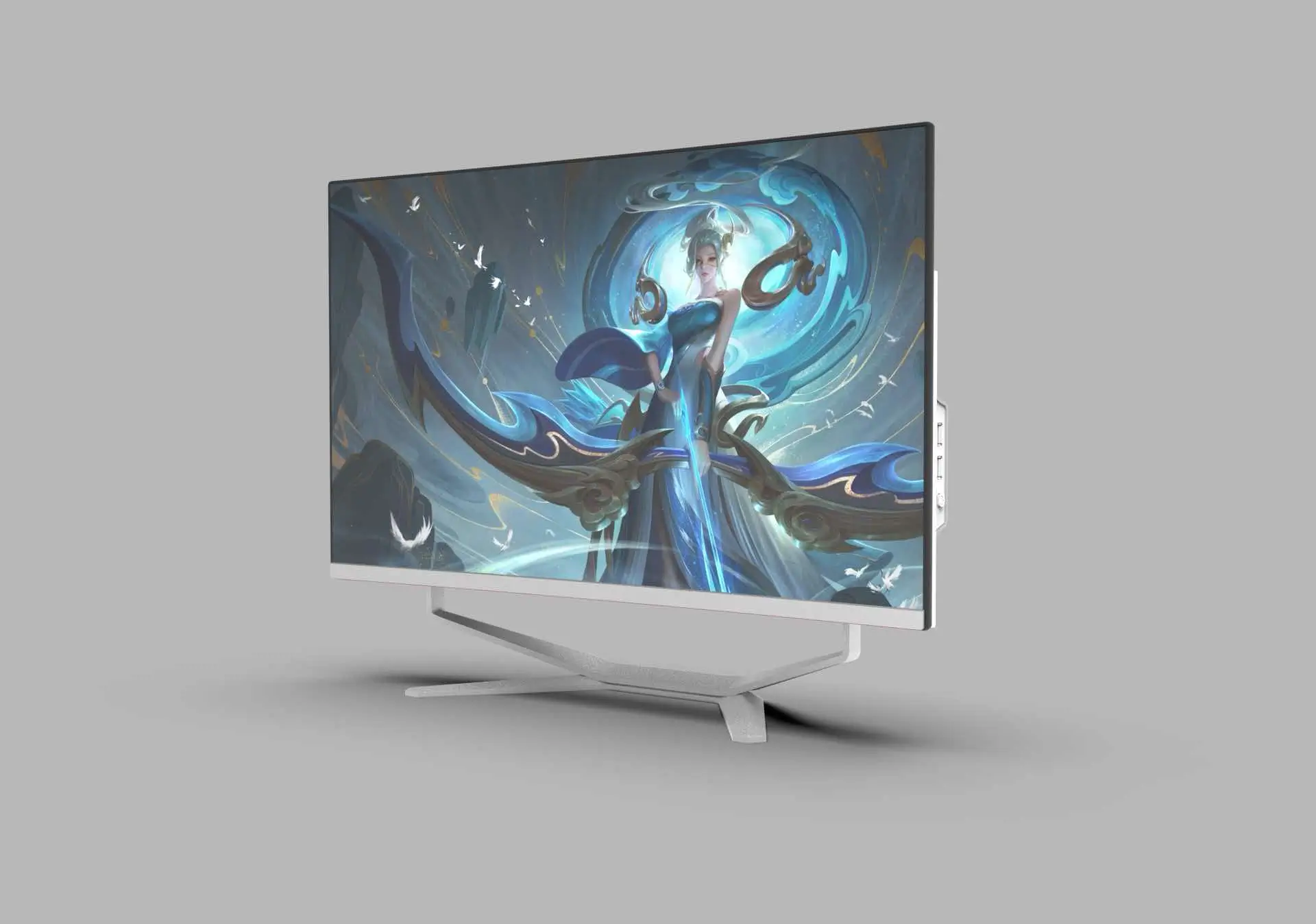
Before choosing a touch screen all in one PC manufacturer, identify the exact model and the touch configuration that will be supplied. An AIO product family, an optional feature in a gallery and a working touch sample provide different kinds of information. For LINGHUFOX, the 32-inch AIO product description explicitly confirms capacitive touch. That is a sound starting point for a desktop touch project, while the controller, supported inputs and application behaviour still need to be matched to the actual order. The checks below describe how to do that; they are not results of physical tests performed for this article.
The LINGHUFOX 32-inch all-in-one computer is described as a touchscreen desktop for work and presentations, with capacitive interaction, a Windows 11-ready computing platform and multiple ports. Its gallery also contains a graphic advertising 10-point capacitive touch. Confirm that touch count against the particular configuration being supplied instead of treating the graphic as a test report or a complete component specification.
The 27-inch AIO has a gallery graphic describing an optional touchscreen. That signals an option to investigate. The reviewed product text does not establish a detailed, included touch configuration for every 27-inch unit. Identify whether the offer includes touch and obtain the specification before presenting it as a confirmed touch model.
The 23.8-inch AIO description covers an integrated desktop for business and reception work, but it does not explicitly establish touch in the reviewed text. Its place in the same product family is not enough to assign it the 32-inch model’s interaction features.
| Evidence | What can be concluded | What still needs confirmation |
|---|---|---|
| 32-inch product text | Capacitive-touch AIO is explicitly described | Exact supplied touch assembly, controller and detailed input support |
| 32-inch gallery’s 10-point label | A multi-touch capability is advertised | That count on the ordered configuration and its behaviour in the intended application |
| 27-inch optional-touch graphic | A touch option is indicated | Whether the offer includes it, and with which specification |
| 23.8-inch general AIO description | Integrated business desktop form is described | Any touch option requires further evidence |

Capacitive touch identifies a technology category. It does not by itself describe the exact controller, the number of simultaneous contacts, supported pens, glove operation or performance around the screen’s edges. List the input behaviour the project needs and ask for the corresponding specification for the complete AIO.
For an external technical example, Elo’s TouchPro 8200 controller information lists touch count, input methods, accuracy and interface as separate fields, and notes that exact specifications vary with configuration and screen size. Use that distinction when reviewing a supplier’s description. No Elo controller, accuracy figure or supported accessory is being claimed for the LINGHUFOX models.
A multi-touch count answers how many contacts can be recognized at once under the specified conditions. It does not answer whether a small button is easy to select, whether handwriting is comfortable or whether the application uses several contacts. Keep simultaneous input capability and the actual user activity as separate acceptance questions.
If the task uses a fingertip, begin with normal finger operation. If it requires a stylus, identify the exact supported stylus and the functions expected from it. A passive stylus and an active pen with additional features should not be treated as the same request. Pressure sensitivity, palm rejection and pen buttons need explicit support, not an assumption based on the word touchscreen.
Apply the same discipline to gloves, protective layers and cleaning conditions. Specify the actual intended materials and obtain the manufacturer’s approved operating and care guidance. Do not infer glove, wet-hand or liquid-resistance capability from a general capacitive-touch description. The reviewed AIO pages do not establish those features.
The screen is also part of a complete computer. Keep the processor, RAM, storage, panel resolution and Windows supply tied to the selected touch model. Windows 11-ready is not a statement that a particular Windows edition or licence is included. These computing fields remain necessary even when the immediate project concern is touch.
Have the sample identified by model and configuration before evaluating the interface. Ask the demonstrator to show how Windows recognizes the touch hardware. Microsoft’s touchscreen guidance identifies the HID-compliant touch screen entry under Human Interface Devices in Device Manager. A recognized device is useful evidence of the input path, but it does not establish accuracy, pen features or the suitability of a particular application.
Open the actual Windows application and record its version, display resolution and scaling. Use a representative form, catalogue or presentation with sample information. A drawing demonstration or a responsive Windows desktop can confirm a limited interaction while leaving the real business task untested.
For a service-desk form, select a category, open a record, edit a field and return to the starting view. For a presentation, move between relevant pages and select an item at the edge of the layout. Include the small controls the operator must use regularly. The purpose is to see whether the complete activity remains practical with the chosen input method.
A customer catalogue and an employee’s desktop application need different reviews. The catalogue should provide a clear route through a limited set of choices. The employee’s programme may contain dense grids, toolbars and secondary commands originally used with a mouse. Demonstrate those ordinary controls before accepting touch as the main input. If a function depends on a hover message or a contextual menu, show how the touch user finds and completes it.
Microsoft’s touch-interaction guidance emphasizes visible feedback as the user touches and manipulates content. Check whether the chosen item is apparent and whether the user can understand what will happen next. A quick response without clear feedback can still leave the operator unsure which control was activated.
For web-based forms or catalogues, W3C’s pointer-cancellation guidance addresses ways to prevent or reverse accidental pointer actions, including suitable release behaviour and cancellation or undo. Review the relevant wrong-selection path in the actual interface. This is an application-design consideration, not a claim that the AIO or its software has certified accessibility.
Distinguish a missed target from an application delay or an unclear state. Record what the finger did, which control was intended and what appeared on screen. That description is more useful for resolving an issue than a general report that touch felt wrong. Do not assign a numerical accuracy or latency result unless it has actually been measured under an agreed method.
If an essential control fails during the demonstration, preserve the observation before changing settings. Note whether other touch controls respond and whether the same action works with the intended alternative input. A problem isolated to one application element needs a different investigation from missing input across the display. The observation should guide that investigation without prematurely declaring the panel or the software defective.
If the task includes typing, test it as part of the activity. Microsoft documents the Windows touch keyboard as an on-screen text-entry option. Confirm how it opens in the intended application and whether the field being edited, its label and the next action remain visible. Use the required language and a realistic entry length.
Keep a physical keyboard or mouse available where the working arrangement needs it. Touch can be valuable for selection without replacing every desk input. For a form containing extended notes, a keyboard may remain part of the accepted workstation. For a short catalogue selection, the application may be designed around direct touch. Judge each activity on its own terms.
Review the physical position at the same time. The operator should be able to reach the required controls while using the desk normally. Confirm the permitted stand adjustment and the unit’s stability from the supplied instructions. Do not apply the movement angles or height ranges of a separate movable display to this desktop AIO.
For shared viewing, identify who operates the screen. Several people looking at a presentation do not necessarily need simultaneous touch input. If two people must interact together, demonstrate the specific application behaviour they need. A stated contact count does not show how that application interprets competing gestures or whether it can distinguish the intended actions.
LINGHUFOX also lists a 21.5-inch rotatable touch smart display with 10-point capacitive touch, Android 12, 4 GB RAM and 64 GB storage. That is a different product family with a movable display arrangement. Its published Android configuration does not fill the missing computer specifications for the Windows-ready AIO models.
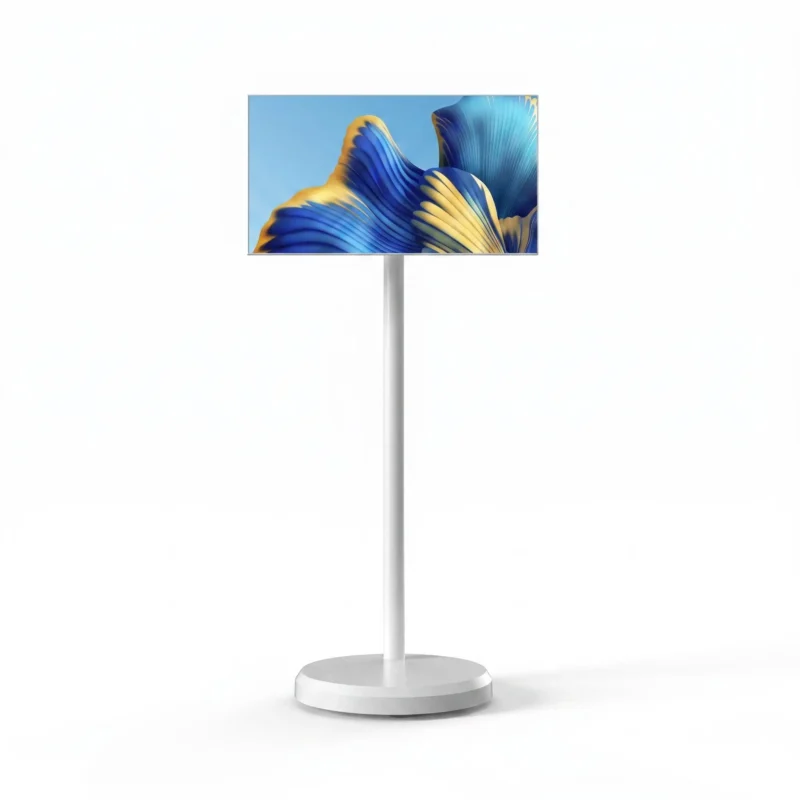
Start the product-family decision with the application that must run. A Windows desktop programme and an Android application are different software requirements. If the project uses a web application, review its behaviour on the proposed platform and browser rather than assuming identical results from both product types.
Also distinguish built-in computing from use as an external touch monitor. A screen showing an external device’s picture does not, by itself, prove that touching it controls that external device. If this is the intended arrangement, establish the actual video input and touch-return connection. The AIO descriptions’ general reference to multiple ports does not confirm that operating mode.
The accepted description should identify the AIO model, touch assembly or controlled specification, declared touch count, supported input tools, computer configuration and application version. Include the operating-system supply and the physical setup used for the review. Keep any optional touch feature visibly associated with the offered configuration.
Use a short sequence that another operator can repeat: confirm device recognition, open the application, select the essential controls, scroll where required, complete a sample entry and correct an intentional wrong selection. Where multi-touch or pen operation is necessary, add the precise required action and approved tool. A feature that the task never uses should not replace successful completion of the task itself.
| Activity | Conditions to retain | Observation to record |
|---|---|---|
| Selection | Application view, scaling and intended control | Selected item and visible feedback |
| Text entry | Language, field and input method | Entered text, keyboard visibility and ability to continue |
| Correction | The intentional wrong selection | Available cancellation or correction path |
| Special input | Specified gesture, pen or other approved tool | Result of the required action on the supplied configuration |
Record the observation and any limitation instead of marking every step successful by assumption. If a software setting changes during the review, retain the final setting with the accepted application version. If the touch controller or computer configuration changes before delivery, identify which checks must be repeated on that changed configuration.
The touch screen all in one PC manufacturer can then supply against a clear requirement: an identified touch AIO, specified input behaviour and an application activity that has an agreed acceptance method. For the current LINGHUFOX range, the 32-inch capacitive-touch description provides the established starting model; other options and detailed performance remain matters for the actual configuration record.
