


Get quote
Get Free Consultation!
We are ready to answer right now! free consultation.
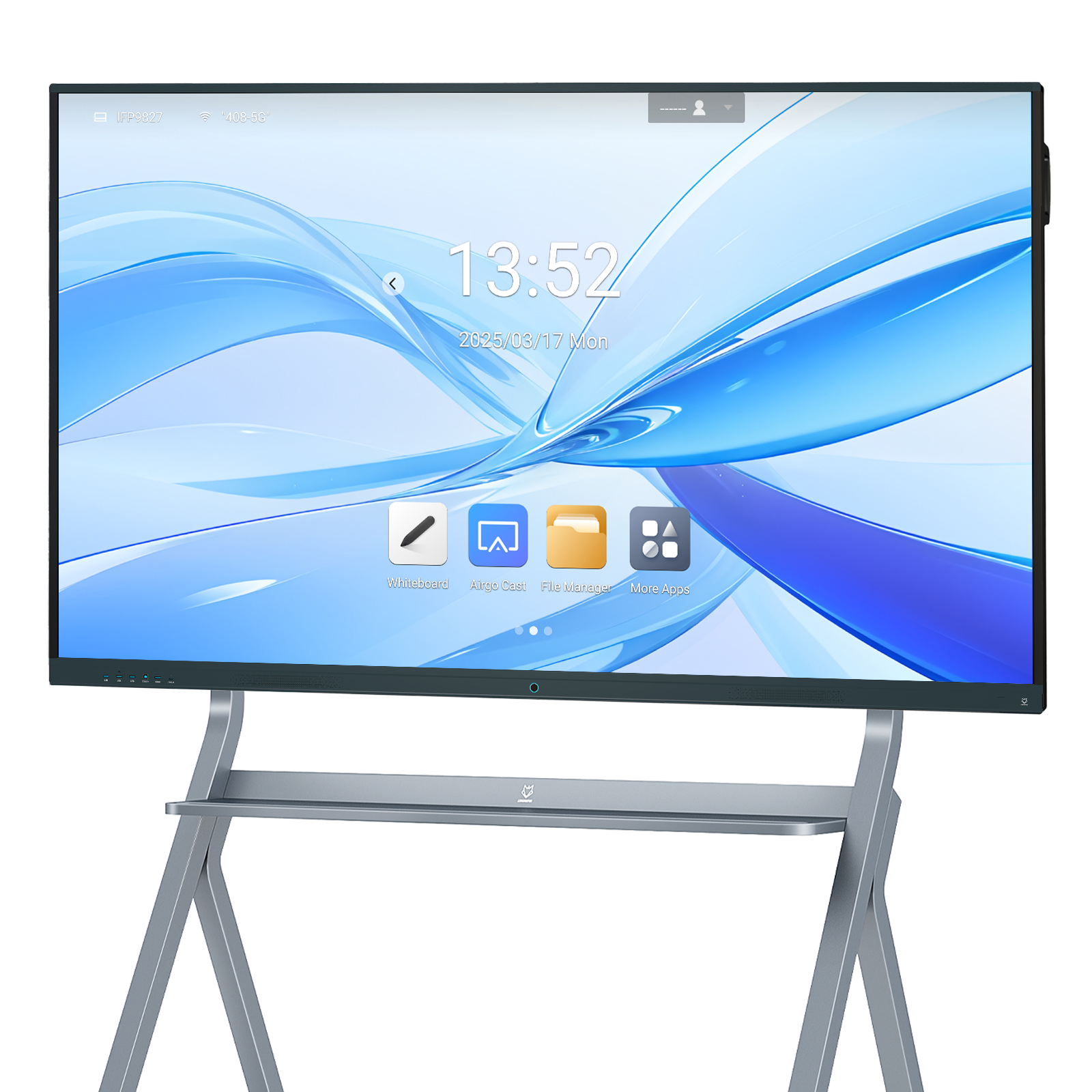
A classroom smart board supplier should ask who will use the screen, not only how many inches the school wants to buy. A board may be easy for an adult presenter to operate while placing important controls beyond the comfortable reach of younger or seated participants. Plan viewing, writing and participation together, then evaluate the exact board, support system and teaching application as one classroom arrangement.
LINGHUFOX supplies several standard interactive-board sizes, including 55-, 65-, 75- and 86-inch models. Their product descriptions provide a starting point for comparing active area, touch and connections. They do not establish a universal mounting height, a classroom capacity or accessibility compliance for an entire installation. Those decisions need the intended users, room conditions and applicable professional guidance.
List the actions expected at the display. A teacher may write a long explanation, while learners may select an answer, move an object or add a short annotation. Another participant may need to contribute from a connected device or through a different input method. Describe those actions without assuming that everyone will stand in the same position or use the same control.
Separate viewing positions from interaction positions. The farthest seat helps determine whether important content is readable; the position at the board helps determine whether controls and writing areas are usable. A successful demonstration from the center of an empty room answers neither question completely. Include the ordinary furniture arrangement and the way people approach and leave the screen.
Ask teachers to bring representative material rather than a specially simplified demonstration. Use a lesson file that contains the actual toolbar, answer choices and writing space. Keep any personal or student information out of the demonstration copy. The aim is to understand the task and interface, not to collect information about individual learners.
The standard 55-inch board lists a 1207.6 × 678.5 mm effective display area and 3840 × 2160 resolution. The 65-inch standard board lists an effective area of 1428 × 803 mm at the same resolution. These are published model values to confirm for the supplied revision, not prescribed sizes for particular age groups.
A larger active image can make the same full-screen material physically larger, but its upper controls may also be farther from some users when the room position is unchanged. That is why readability and reach should be reviewed separately. Do not solve a visibility concern by increasing the diagonal without checking what happens to the interaction area.
The 86-inch standard board provides a larger listed active area of 1892 × 1064 mm. It may be considered for a larger shared presentation, but the intended installation still needs a usable writing arrangement. A teacher-led presentation and an activity involving direct learner input may need different content layouts on the same screen.
Discuss a fixed wall location or an approved stand with the supplier and qualified installer. Confirm the exact support system, its compatibility and the manufacturer’s operating instructions. Do not assume a stand is height-adjustable, powered or suitable for a particular board because it appears in a product photograph. Optional features and accessories belong in the written configuration.
Where an adjustable arrangement is proposed, review how it will be operated and supervised in the classroom. The school and installation professionals should determine the appropriate procedures. This guide does not specify a safe mounting height, movement method or structural design. Those matters depend on the actual equipment, users and local requirements.

The standard LINGHUFOX boards describe infrared touch with support for 20 touch points on a connected PC. That statement concerns the input capability in the listed arrangement. It does not mean every application supports the same gestures, that all controls are easy to select or that simultaneous classroom activity will be appropriate for every lesson.
Open the intended teaching application and inspect the controls people will use most often. Check selection targets, spacing, undo, page navigation and the location of frequently used tools. A toolbar designed for a desktop mouse may need a different layout for direct touch. Confirm that the required interface changes are available in the actual application rather than assuming the display hardware supplies them.
The W3C target-size guidance addresses pointer-target size and spacing in software interfaces, including a 24 × 24 CSS-pixel baseline with defined exceptions. CSS pixels are not physical mounting dimensions. This guidance can inform application review, but it does not certify a smart board or classroom installation.
Some activities ask learners to drag a small object to a precise location. Consider whether the educational task can also be completed by selecting an answer or using another supported input method. Ask the application provider about the available alternatives. The purchasing team should distinguish a teaching-software requirement from a claim about the number of touch points in the panel.
Test the permitted input tools on the selected board and application. The standard listings describe touch sensing and supplied writing accessories, but the school should confirm the exact pens and functions included in the order. Do not assume an unrelated stylus, eraser or button-operated accessory will behave identically. Record the tool used during acceptance.
Check the result from the audience’s viewpoint. A learner may successfully select a control while the rest of the class cannot see the changed state. Use clear visual feedback and content labels where the application allows them. Treat the visibility of the result as part of the lesson design rather than expecting the display to make an unclear interface self-explanatory.
Decide how many people are expected to interact at once and what each person will do. A large touch-point count should not become an instruction to crowd the screen. Use the room layout and lesson plan to determine a practical arrangement. Keep the route to the display clear and have the school define appropriate supervision and classroom procedures.
For a two-person comparison activity, identify whether both participants need independent tools or whether one person selects while another explains. The actual application must support the intended behaviour. Record any limitations found during the sample review. This is a proposed evaluation, not a claim that a specific LINGHUFOX board has been tested with every collaborative learning application.
The guide to switching between writing and shared content helps define the teacher’s workflow around such activities. Check how the lesson returns to a stable state afterward. A quick transition back to the main explanation should not depend on a technician reopening files or finding an unrecorded source setting.
| Task | Question | Responsible review |
|---|---|---|
| Viewing a lesson | Can the intended seats read the essential information? | Teachers and room planner |
| Selecting an answer | Are the relevant controls usable in the actual application? | Application provider and users |
| Writing at the board | Does the approved tool and writing area suit the task? | School and display supplier |
| Changing the screen position | Is the proposed support system approved and appropriately operated? | Qualified installer and school |
| Saving work | Is the file and account process appropriate for shared use? | School IT and teaching staff |
Review the room in its normal arrangement. A teacher’s desk, stored equipment or a temporary charging cable can interfere with access even when the display itself is correctly installed. Assign an owner to each issue so that an unresolved furniture or room-layout decision is not mistaken for a limitation of the board.
Lighting also affects participation. Check the intended positions under the normal room conditions, including side seating and the writing position. The standard boards list anti-glare glass, but that does not remove every reflected light source. Use the actual lesson material and record the conditions under which the school accepts the arrangement.
Do not determine accessibility from a photograph or from one staff member’s experience alone. Where the project has specific accessibility obligations, involve the appropriate adviser and the people responsible for those requirements. The supplier can provide product and configuration information; the complete room, software and operating process need a broader assessment.
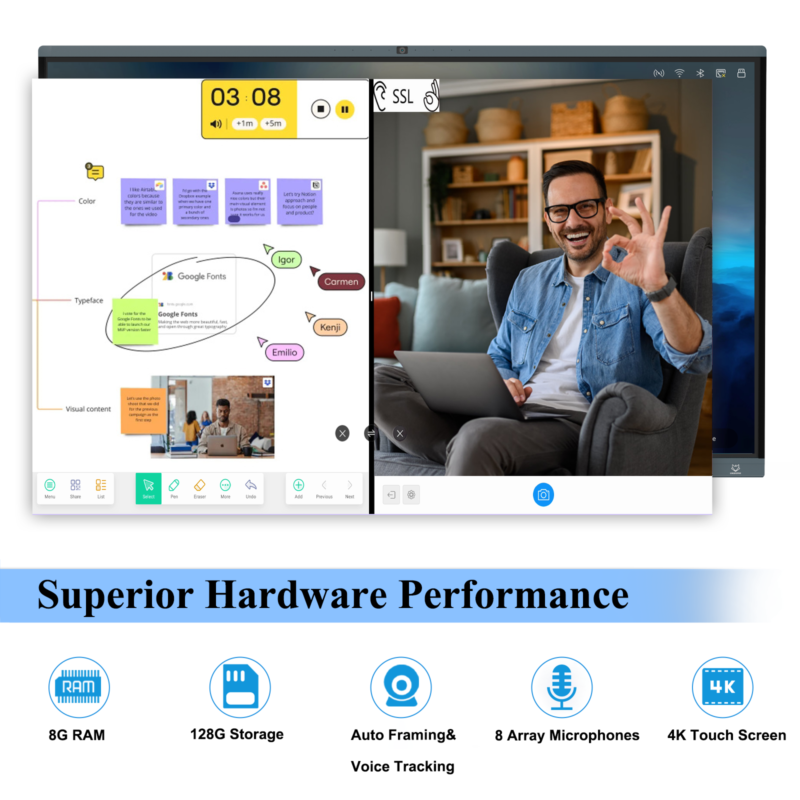
Schools rarely have identical classrooms. One room may need a different screen location, another may use a different computer and a third may need an alternative input arrangement. Record those differences against the room and approved configuration. A small exception list is easier to maintain than an assumption that every installation can copy the first room.
Keep observations task-focused and avoid unnecessary personal information. Record that a control was difficult to reach from a particular operating position, for example, rather than adding private details about a learner. The project needs enough information to improve the arrangement and verify the decision, not a new collection of sensitive records.
Identify the selected board, support system, computer route, application and input tools. Attach the lesson files used for the evaluation and the accepted settings. Note the positions reviewed, unresolved issues and the people responsible for resolving them. The record should allow another teacher or technician to reproduce the approved arrangement without guessing.
The classroom package guide helps distinguish the shipped hardware from installation, software and training responsibilities. Use it to confirm which accessories belong to the order and which must be supplied locally. A usable classroom depends on those boundaries being clear before delivery.
After installation, walk through the intended lesson with the actual equipment. Confirm that the approved files, source route and tools are available, and that the room has not changed in a way that defeats the earlier evaluation. Retain the result as the starting point for later room changes or replacement equipment.
No. A larger active image can help some viewing tasks, but it can also change the reach needed for controls and writing. Evaluate the intended lesson, user positions, support system and application together. The appropriate configuration is the one supported by the school’s actual tasks and room requirements, not simply the largest available diagonal.
No. The panel’s input capability and the application’s behaviour are separate. Test the intended shared activity with the actual computer, software and tools. Record which actions can occur together and how the teacher restores the lesson afterward. Do not infer an application feature or classroom outcome from a touch-point count alone.
The school should involve teaching staff, IT, the qualified installer and any relevant accessibility adviser, with product information from the supplier. Each party should approve the area it controls. Keeping those responsibilities explicit helps prevent a hardware purchase from being mistaken for approval of the room, software or operating procedures.
