


Get quote
Get Free Consultation!
We are ready to answer right now! free consultation.

A classroom package from an interactive whiteboard supplier should tell the school exactly what arrives and who makes it usable. Start with the specified display and its listed accessories, then identify the selected computer, camera and presentation options. Give installation, software licensing and user setup their own descriptions. A single package price is useful only when the purchasing team can connect it to a complete, agreed supply list.
Consider a school comparing two offers for a 75-inch teaching display. One may use the teacher’s existing laptop; another may include an integrated computer. Both could be reasonable. The decision becomes difficult when the quotation says only “interactive classroom solution” and leaves the buyer to infer which equipment and services are included. Ask for the supply boundary before comparing the headline totals.
The LINGHUFOX 55-inch smart board lists a wall-mount bracket, remote control, stylus, antenna and power cable among its accessories. The 75-inch smart board provides a similar accessory list. Treat those lists as a starting point for the quotation, with the quantity and actual items confirmed for the offered build. They do not establish that every optional classroom device is included.
Supplying a bracket and installing a display are separate pieces of work. Ask who checks the proposed supporting surface, selects the appropriate fixing arrangement and confirms the installed position. The supplier’s listed bracket is not evidence that a particular wall has been assessed. Where a local installer owns that decision, make the required drawing and product information part of the handover.
Size also changes the package the installer handles. The published 55-inch listing gives a net weight of 25.9 kg, while the 75-inch listing gives 51.5 kg for its specified build. Reconfirm these figures for the final offer rather than applying either to a modified configuration. They are a reason to identify the handling and installation work explicitly, not a basis for the school to choose lifting equipment without an installation assessment.
A remote control, a writing stylus and a presentation clicker perform different tasks. The basic accessories line should identify the supplied items clearly enough that a receiving team can recognize them. If spare styluses, a mobile stand or additional cables are selected, give them separate quantities and descriptions. Do not rely on a showroom photograph that happens to show equipment from several different offers.
The displays’ common headline specifications also need their qualifiers. Both named models list 3840 × 2160 resolution, infrared touch, 4 mm anti-glare tempered glass and 20 touch points on a connected PC. The PC qualification matters when a package uses only the display’s Android environment. Confirm the intended computer mode and application instead of assuming that the same touch workflow is available in every supplied setup.
Some schools want teachers to connect their own laptops. Others want a computer that stays with the room. Ask the supplier to quote the chosen approach explicitly, including the connection arrangement and any peripherals required for everyday use. A display with an Android platform should not automatically be interpreted as a complete Windows computer package.
The LINGHUFOX OPS mini PC is listed separately as a compact computer for compatible interactive displays. OPS means Open Pluggable Specification. Intel’s introduction to OPS describes standardizing the connector and signals between a computer board and a display. For a buyer, the practical step is still to confirm the exact display-module pairing in the offer; the abbreviation does not identify the processor, memory or storage configuration.
The accessory listing describes Windows 10 and Windows 11 support, interfaces, cooling vents and a removable design. It does not provide one universal processor and memory combination for every order. Request the proposed CPU model, RAM, storage, operating-system edition and the display models with which that module is being supplied. Keep those values in the order record so a later replacement can be assessed against the approved configuration.
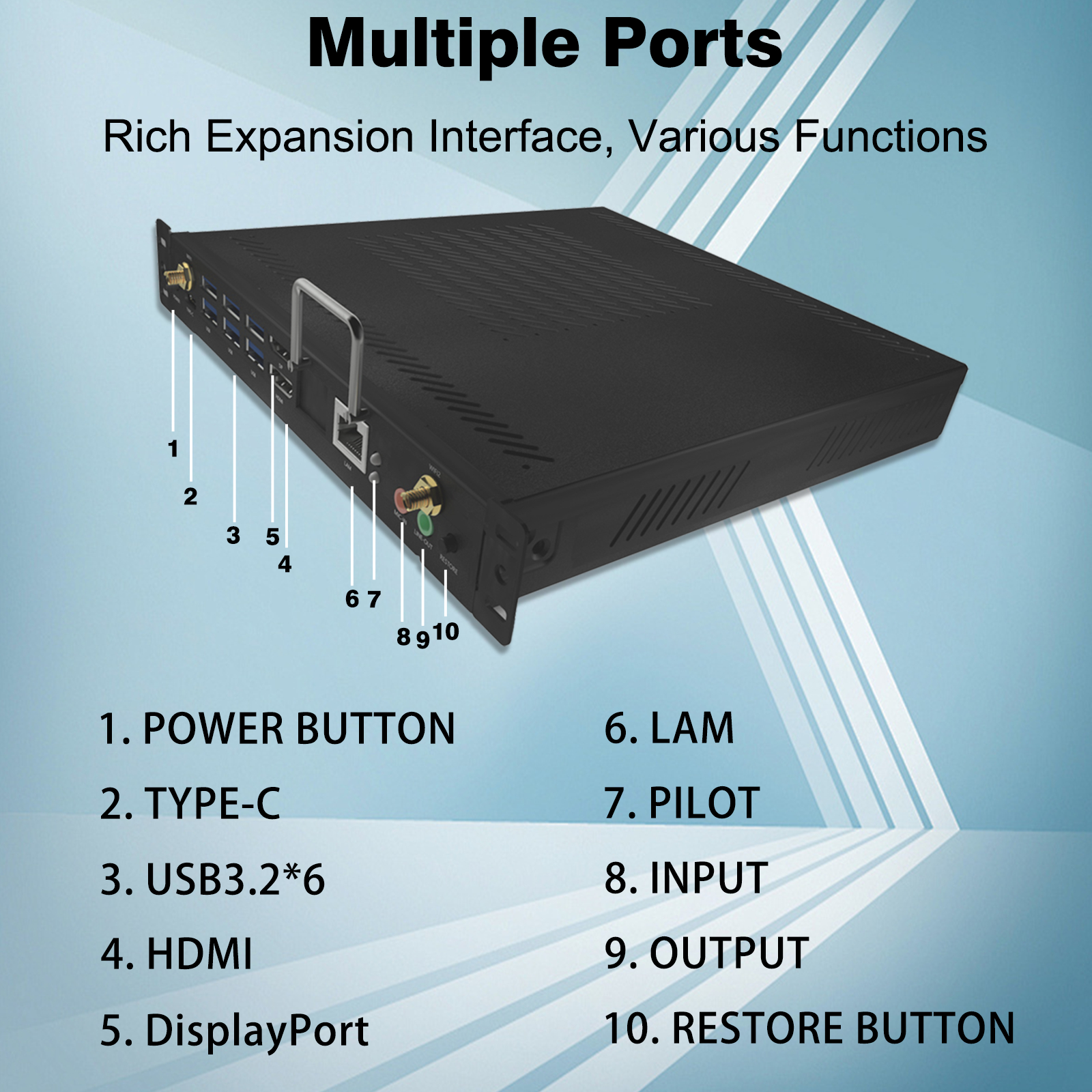
If the school supplies the computer, identify which party tests its connection to the display. Include any required adapters or touch-return cable in that discussion, without assuming that every Type-C cable carries all desired functions. Decide where a keyboard or other accessory belongs if the chosen application needs one. These details prevent an apparently complete hardware delivery from becoming an unresolved setup job for the teacher.
Hardware support for an operating system does not state whether a licence is included in a particular price. Ask the supplier to identify the Windows edition, its supply arrangement and who performs the agreed activation and handover. Microsoft’s Windows activation guidance distinguishes digital licences from product keys. The purchasing implication is to document the offered licence arrangement instead of treating a running demonstration desktop as sufficient commercial evidence.
Keep the school’s IT requirements in this decision. Specify the operating-system version it intends to maintain and ask for confirmation on the quoted module. A product page that mentions an older supported operating system is not a commitment to a current update or support programme. The delivered computer should have an agreed maintenance owner, not merely an operating-system name on a promotional sheet.
Classroom applications are another line of responsibility. State which annotation, presentation or collaboration programs must be ready for the teacher. Microsoft’s Office activation guidance addresses application activation separately from the computer’s operating system. Installing a program and supplying its required licence or subscription are distinct questions; ask the supplier and the school’s IT team to describe their respective responsibilities.
Do not put private account passwords into a general packing list. The receiving team needs to know which device and software setup belong to each room; authorized staff can handle account enrollment through the school’s chosen process. Record who owns the administration and recovery arrangements. This makes later staff changes or computer replacement easier to manage without implying that a hardware vendor controls the school’s teaching accounts.
A room used for ordinary local teaching may have different video requirements from one that hosts a remote guest or records a presentation. The separately listed LINGHUFOX interactive whiteboard camera is described as a 4K webcam with adjustable above-display mounting support and a tripod-mounting alternative. That provides a useful starting accessory for a video brief. It does not establish the complete audio, mounting or software package.
Have the supplier specify the camera, mounting parts, connection cable and computer that will use it. Confirm what covers microphone pickup if the room needs to send speech as well as an image. Do not infer a microphone configuration from the camera’s resolution label. Likewise, a classroom display’s speakers can reproduce received sound, but that does not by itself describe how a remote participant hears the teacher.
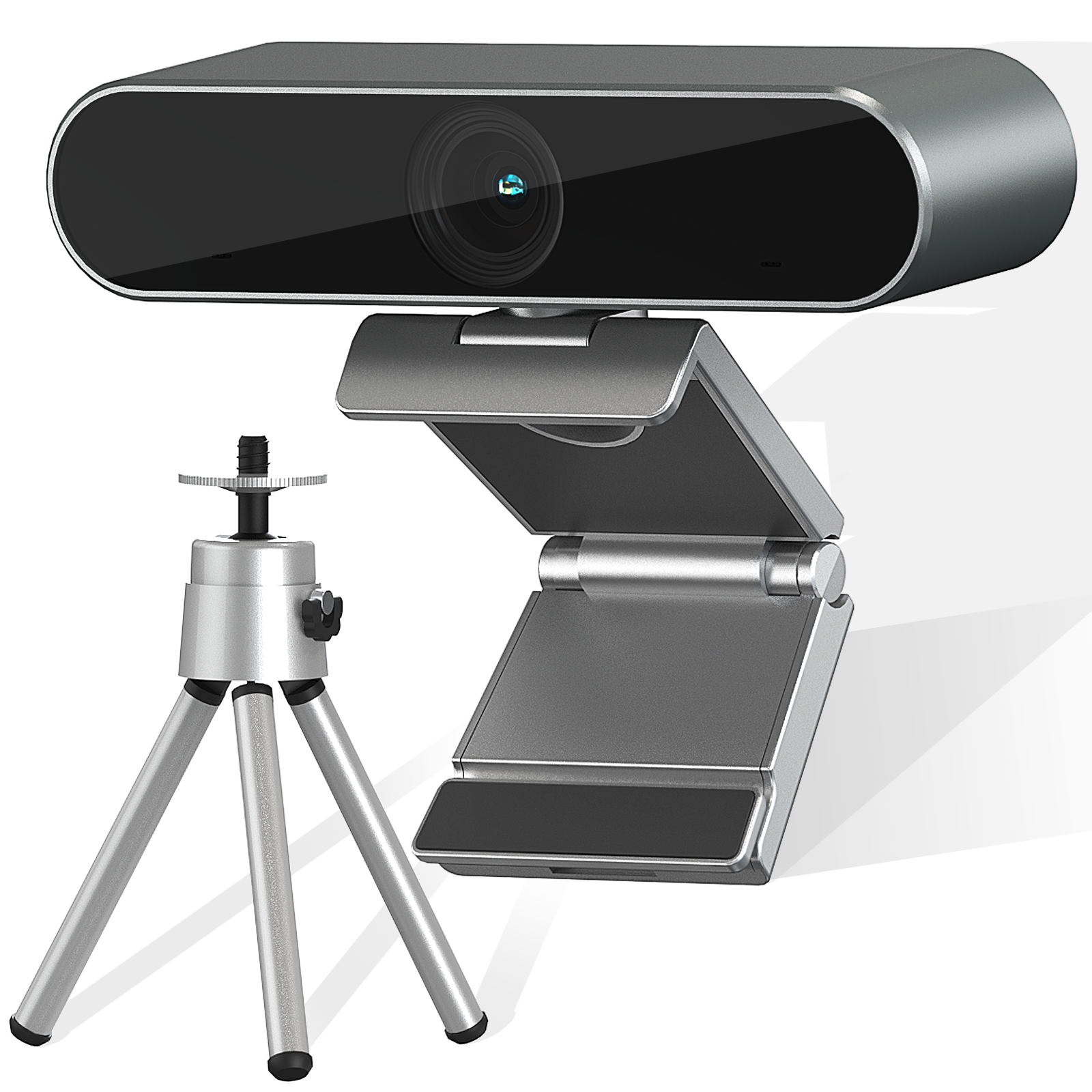
Test the selected application on the offered host computer. Microsoft’s camera-permission guidance explains that Windows applications need appropriate access to use a camera. A recognized device can still need configuration at the application or account level. Include that setup in the agreed delivery work when the supplier is expected to provide a usable video package; otherwise identify it as the school’s or integrator’s task.
A sample call can answer whether the intended speaker and teaching area are shown appropriately, but its result must belong to the tested placement and application. The product page does not supply enough information to promise a field of view, automatic tracking behaviour or application certification for every room. Obtain the missing details or demonstrate the required outcome before adding those claims to the purchase description.
The LINGHUFOX presentation clicker is offered for wireless slide control, with a compact pen-clip design. It can belong in a package where the teacher moves away from the screen while presenting. It is a different accessory from the display’s own remote control, so list it separately if required and test it with the intended presentation workflow.
Ask which connection or receiver arrangement the offered clicker uses and what accompanies each unit. Check the actions the teacher needs, such as advancing a slide and returning to the preceding one. The listing does not justify inventing a wireless range, battery duration or universal application compatibility. A short demonstration with the actual computer and presentation program is more useful than an unsupported all-purpose accessory claim.
For the writing tools, clarify the supplied stylus quantity and any chosen spare set. For shared rooms, decide where the tools will be stored and who replaces a missing item. These are school operating decisions, not reasons to assume the supplier includes unlimited replacements. A small accessory register tied to the room package can prevent repeated confusion about what was delivered and what should remain in place.
Before approval, ask for a supply list that distinguishes included equipment, selected options and work assigned to another party. Use the exact display and computer configuration names throughout it. A general accessories photograph can support identification, but it should not override the agreed list. Where a product changes after the sample, update the relevant line before the order proceeds.
| Supply area | What to identify |
|---|---|
| Display package | Model, quantity, listed bracket and supplied writing/control accessories |
| Computer | School laptop or quoted OPS module, configuration and required connections |
| Software | Operating-system and application supply, licensing, setup and administration owners |
| Video option | Camera, mount, cable, host computer and separately confirmed audio arrangement |
| Presentation extras | Clicker, any receiver or accessories, and tested application |
| Local completion | Receiving, installation, room configuration and teacher handover responsibilities |
Different rooms can use different versions of the package. A school might pair a shared 55-inch unit with visiting teachers’ laptops while assigning an OPS computer to a permanent 75-inch classroom installation. Describe those as two approved combinations, even if they appear on one purchase order. Identify the accessories associated with each combination so the receiving team does not assume that every carton should contain the same equipment.
List shared spares separately from the items needed to complete a room. A spare stylus set stored centrally serves a different purpose from the writing tools supplied for everyday teaching. Similarly, a replacement OPS module needs an identified compatible configuration and an agreed support procedure; the word “spare” does not prove it can replace every installed computer. Keeping these distinctions visible helps the school recognize a complete initial delivery and maintain a useful record for subsequent purchases.
At receiving, compare the labelled items with this record before distributing equipment to different classrooms. If an accessory is packed separately, make its room or package association clear. Record exceptions as specific missing or changed items, rather than treating an incomplete video option as a fault with the whole display. The same record then gives the support team a reliable description of the installed package.
An interactive whiteboard supplier’s offer is ready to compare when the school can explain what the package contains, what its own team supplies and which work remains before teaching begins. Choose the combination that meets those responsibilities clearly. A well-defined package helps the purchasing team, installer and teacher work from the same understanding of what has been bought.
