


Get quote
Get Free Consultation!
We are ready to answer right now! free consultation.

Choose a smart board for classroom use by starting with the lesson material and the people who will use it. A page of small labels, a handwritten explanation and a student’s shared presentation make different demands on the same screen. The useful question is whether the proposed display and room arrangement give each activity enough readable, reachable working space.
Plan the lesson content, the writing area and the room position together, then compare the display sizes and computing options. The examples in this guide are proposed classroom planning situations. They do not represent measured learning outcomes or completed installations.
Select a few representative teaching pages before discussing a preferred screen size. Include something students must read, something the teacher needs to explain through writing, and something a student may present. Use the school’s actual file types and applications. These examples reveal the working demands more clearly than a display demonstration built only from large pictures.
Consider a geometry lesson in which the teacher shows a diagram, develops a construction beside it and asks students to explain a relationship. The prepared figure, the new marks and the explanation need to remain understandable together. A different lesson might compare two passages or discuss a photograph. Its page layout and space for comments could be quite different.
Decide which part of the material must stay visible while the teacher writes. If the teacher frequently moves between pages, identify how they will return to an earlier point. These decisions help define the intended software workflow without assuming that a particular onboard application has every required tool.
For several subjects sharing a room, collect examples from more than one teacher. A readable title slide cannot represent a detailed language exercise or a technical drawing. The goal is a useful range of classroom material, not a large collection that nobody has time to review.
A prepared slide can occupy the whole screen even when the teaching task needs space for new reasoning. Ask the teacher how the lesson will use the canvas: writing over the material, adding notes alongside it, or moving to a separate working page. Confirm that the chosen application supports the intended approach.
For the geometry example, keep the diagram large enough to discuss while leaving an area for the construction steps. If the application offers zoom or movable objects, decide how those controls will be used during the explanation. A feature is most useful when it helps preserve the context students need to follow.
The LINGHUFOX 65-inch smart board lists a 3840 × 2160 display, infrared touch and 20 touch points on a connected PC. It also lists 4 mm anti-glare tempered glass. These describe the named product; they do not establish how large a teacher will write, how the application lays out its tools or how many learners can comfortably work at the board.
Review the actual writing and control area with the intended users. Ask where the teacher can stand while explaining and whether that position blocks the detail students need. Decide where pens and other ordinary accessories will be kept. A clear work area around the screen is part of the classroom plan, not merely an accessory decision.

Readability needs a room review. Show the representative material at the intended working size, then inspect it from the seating positions that matter, including the farthest and side positions. Record which labels, symbols or annotations are difficult to follow. A panel’s resolution and viewing-angle entry cannot answer every question about the content and room together.
Microsoft’s accessible presentation guidance recommends readable text formatting, sufficient contrast and white space. Those are useful principles when preparing teaching pages. They are not a substitute for checking the displayed lesson in the actual room, and they do not establish a universal viewing distance for a particular screen.
If the teacher marks one construction line in red and another in green, add a label, line style or other identifying cue where needed. The W3C guidance on using colour explains the importance of conveying information through something more than colour alone. Applying that principle to lesson graphics is a content-design choice; it is not a claim that the display has received an accessibility certification.
Include ordinary lighting in the review. Look for reflections from the seats and from the teacher’s working position. Consider how the room is used at different times of day. An anti-glare surface is a product feature, but the school still needs to consider its windows, overhead lights and proposed screen position.
Record what changed when the content is adjusted. If larger labels make a diagram readable, check whether the page still leaves enough context and writing space. If moving a seat changes the view, note the effect on the room’s other activities. These observations help the school distinguish a content-layout decision from a screen-size or placement decision, rather than treating every difficulty as a reason to buy a different display.
SMART’s location-planning guidance treats visibility, lighting, access and room traffic as separate considerations. For a LINGHUFOX installation, use the approved model instructions and local installer assessment. Do not transfer another manufacturer’s numerical placement rules or mounting details to it.
LINGHUFOX lists 65-, 75-, 86- and 98-inch smart boards. The linked base-model pages specify 3840 × 2160 panel resolution. Moving to another physical size therefore needs to be considered together with the content scale, room position and use of the working area, rather than described simply as more pixels.
| Model size | Published cabinet width × height | Planning question |
|---|---|---|
| 65 inch | 1486 × 921 mm | Can the intended material and writing area be used at this size? |
| 75 inch | 1708.2 × 1013.8 mm | Does the layout remain readable from the planned seats? |
| 86 inch | 1954 × 1185 mm | Can the room provide the required wall and user access? |
| 98 inch | 2218.2 × 1318 mm | Does the larger cabinet suit the content, access and installation plan? |
These are published cabinet dimensions, not active-image dimensions, mounting clearances or installation instructions. Confirm the full drawing, support arrangement and selected configuration before preparing the room. The 75-inch, 86-inch and 98-inch listings each provide their own physical information.
A larger display can change the usable layout, but it also changes the area a person must reach and the space the cabinet occupies. Ask the teachers and installer to review both viewing and interaction. A screen chosen only for the back row can still create awkward controls for someone working at the front.
Do not assign a standard class size from the diagonal measurement. Seat arrangement, content detail, sightlines and the needs of individual learners all affect the decision. Use the room’s actual constraints to compare the proposed options and record the reason for selecting one.
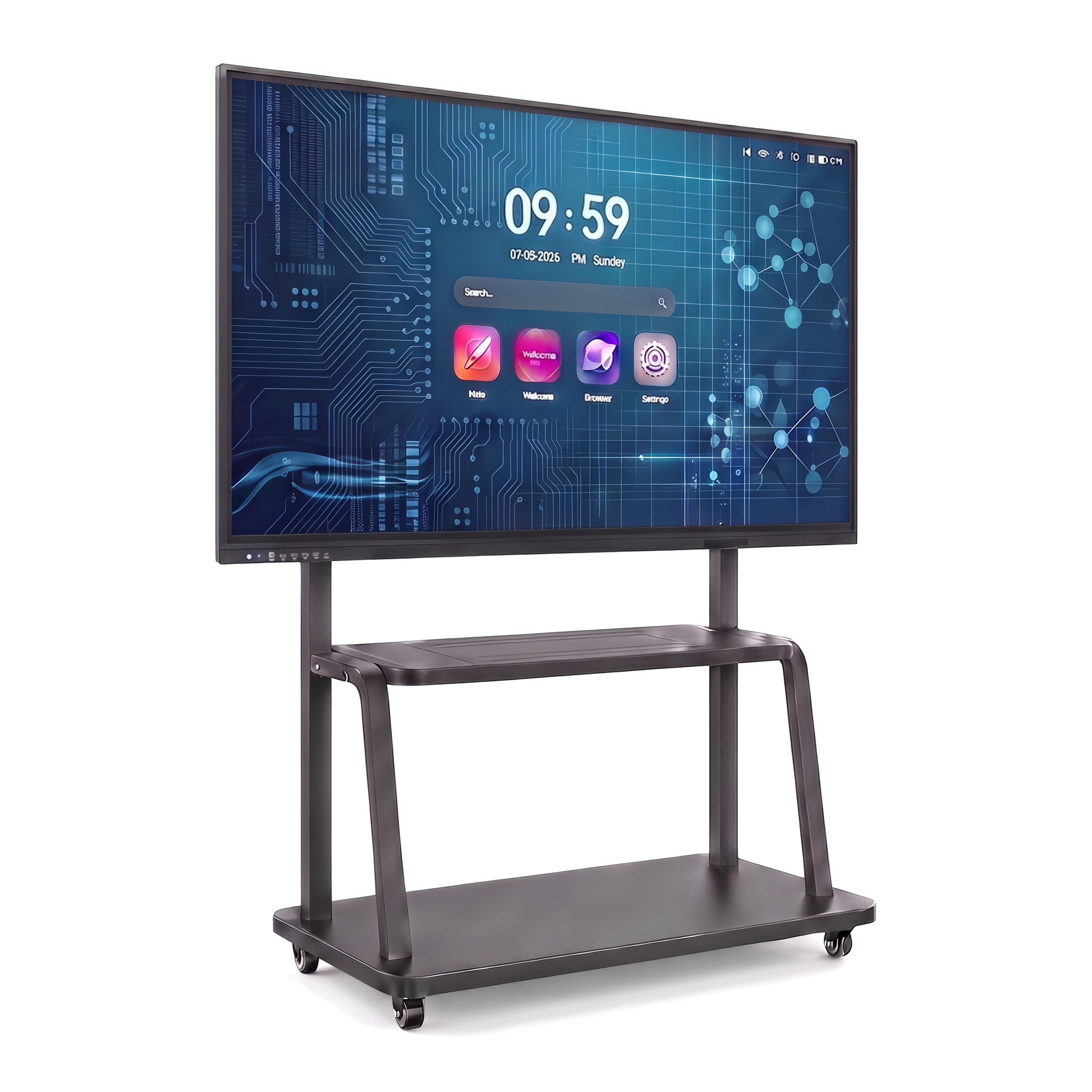
Participation does not have to mean every student coming to the screen. The teacher might invite a spoken explanation, discuss a paper response, show a student’s prepared work or ask a small group to mark a diagram. Identify the forms that serve the lesson, then check the software and room arrangement needed for them.
CAST’s Universal Design for Learning guidance on communication encourages varied media for expression, such as text, speech and drawing, when the learning goal permits. This gives the school a useful planning principle. It does not demonstrate that adding a particular display will automatically improve learning or make every activity accessible.
If two students will work at the board together, describe what each should do. They might annotate different parts of a diagram or compare approaches side by side. Ask whether the intended application and computer mode support those actions independently. The published PC touch-point specification should be checked in that actual use case.
Review how students approach and leave the working area and how others can keep following the explanation. Ask the school to identify relevant reach and access needs before choosing the installation arrangement. The task may be better served by adapting the content or participation method as well as selecting the hardware.
Also decide who controls a shared presentation and when it ends. If student devices are involved, confirm the supported sharing method, network conditions and teacher controls for the actual configuration. A general wireless-sharing description is not a promise that every device and application behaves the same way.
A lesson may move among a prepared presentation, an onboard writing application and material from a connected computer. Identify which environment will be the normal starting point. The teacher should know where each item opens and how to return to the shared explanation without searching through unrelated menus.
Choose the computing arrangement around the school’s applications and support practice. If teachers bring laptops, identify the connections and source selection they will use. If a room computer or OPS is proposed, confirm its actual configuration and software arrangement. The selected display size does not settle those decisions.
Plan a supported alternative for an activity that depends on a connection. For example, the teacher may need a locally prepared version of the lesson when a planned sharing session is unavailable. Decide this with school staff and confirm the functions the equipment actually provides. A fallback should be a usable teaching option, not an assumed feature.
Finally, identify what should be kept after the lesson: an editable working file, a static reference image, a presentation or another agreed output. Ask where it is saved and how the teacher retrieves it using the school’s approved account method. Keep private student material out of a general demonstration and use suitable sample content while reviewing the proposed setup.
Give the next user a predictable starting point. The school should define how the session is closed, how personal access is removed where applicable and who helps when the expected file or source is unavailable. That handover belongs alongside the classroom’s ordinary operating instructions.
LINGHUFOX’s education application range includes classroom and training settings. A useful project brief should narrow that broad use case to the school’s actual room: representative content, writing method, participation patterns, seating, lighting and computer environment.
Ask the supplier to identify the display configuration and accessories proposed for that brief. Keep the model-specific facts beside the classroom observations, and leave unanswered software or installation questions visible. If the content layout is changed during the review, record that change as well, so the reason for the final screen choice remains clear.
For a project covering several rooms, identify which assumptions are shared and which must be checked locally. The same teaching application may be used throughout a school while seating, windows and available wall space differ. Give each room a short record of its relevant constraints so a common purchasing plan can still account for those differences.
The best fit is the configuration that supports the school’s intended teaching work within its room and operating arrangements. Choose a smart board for classroom lessons with those demands in view, and confirm the remaining model, application and installation details before the order is approved.
