


Get quote
Get Free Consultation!
We are ready to answer right now! free consultation.
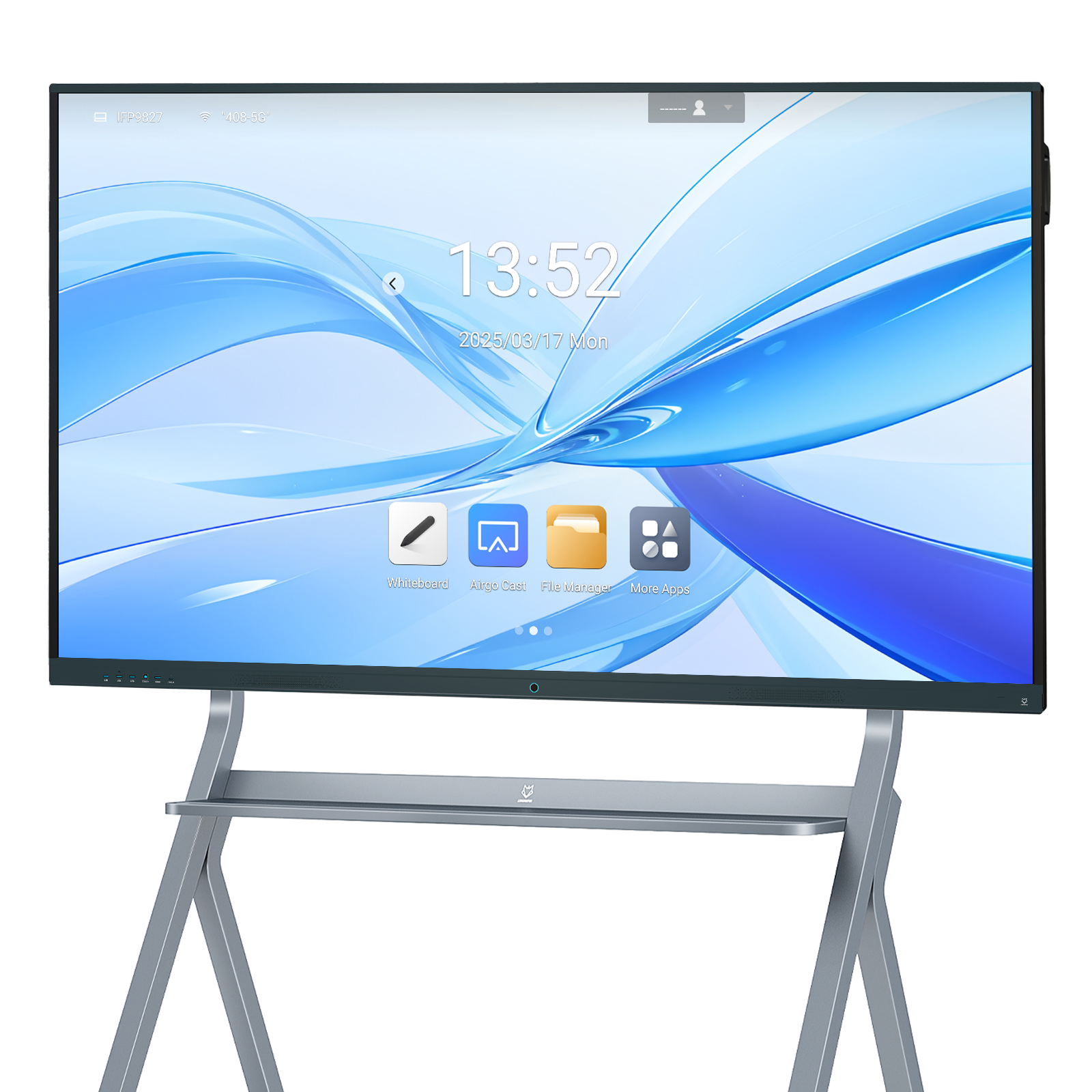
An interactive whiteboard manufacturer should demonstrate what happens during a lesson: a teacher opens material, writes over it, connects a computer, involves another person and keeps the completed work. A promotional video proves much less about those transitions. For a school buyer or education distributor, the useful sample is a complete teaching setup with an identified display, computer mode, application and connection arrangement. Approve that combination before using the demonstration to specify a classroom order.
Choose teaching material that exposes several ordinary actions without requiring a lengthy training session. A useful example is a mathematics explanation with a prepared diagram, handwritten working and a short exercise that another person completes at the board. This is a proposed demonstration, not a report of a school installation. The material should be familiar enough that the teacher can notice equipment or software difficulties instead of learning the subject during the trial.
Bring the file in the format the school actually uses. A polished sample supplied by the vendor may run smoothly while answering little about the school’s presentation files or annotation habits. Ask the demonstrator to start from the normal home screen, locate the material and begin the activity. Observe what the teacher must remember, which controls are easy to find and whether assistance is needed between tasks.
The LINGHUFOX 65-inch smart board and 75-inch smart board both list 3840 × 2160 displays, infrared touch and an Android platform. They are credible starting candidates for this exercise. Those shared specifications do not mean that every supplied configuration, installed application or connected computer behaves identically. Keep the selected unit’s configuration visible in the trial record.
Begin with a short handwritten explanation. Write numerals, letters, a diagram label and a line joining two points, then edit or erase part of the work. Ask the teacher to use their normal writing size and pace. A large sweeping signature is an easy demonstration; smaller classroom annotations reveal whether the proposed application and writing surface suit the teacher’s actual task.
The 65-inch and 75-inch listings state support for 20 touch points on a connected PC. Preserve the words “on a connected PC” when describing the requirement. That figure is not evidence that every Android application will support the same number of participants or recognize every combination of pen and finger actions. If simultaneous participation matters, demonstrate the intended activity in the selected operating mode.
For example, ask two participants to work on separate parts of the same exercise, then have one move or erase an object. Record the result in that application. Counting how many fingers can touch a blank screen answers a different question from whether two people can complete a useful classroom task without interrupting each other. Do not present the proposed exercise as proof of a capability before it has been run.

The published 4 mm tempered, anti-glare writing glass is another model detail worth confirming, but it cannot establish the teacher’s complete writing experience. View a fine annotation and a pale diagram under representative room lighting. Let the person who will teach make the judgment. A product description can explain the intended surface; it cannot replace an observation of the offered unit with the school’s content.
A common lesson transition is moving from the display’s own tools to material on a teacher’s computer. Demonstrate this transition deliberately. First establish that the computer’s picture and sound reach the display. Then use the display to operate something on that computer. Successful video output alone does not prove that touch information is returning to the right device.
The LINGHUFOX 65-inch listing identifies USB 2.0 as the touch-system communication connection and separately lists HDMI, USB and Type-C interfaces. Obtain the connection diagram for the quoted model rather than guessing which sockets belong together. As a professional reference, SMART’s computer-connection documentation distinguishes HDMI video/audio from an associated USB touch connection on its own displays. The lesson is to verify both paths; its port mapping is not a wiring instruction for LINGHUFOX hardware.
Use the laptop, adapters and cable route intended for the classroom trial. If a one-cable Type-C arrangement is proposed, have the supplier identify which functions the offered port, cable and computer support, and demonstrate them together. The presence of the connector does not settle the complete arrangement. Record a confirmed alternative connection method if visiting teachers will bring computers with different interfaces.
After the demonstration, disconnect the laptop and return to the display’s own environment. Then connect it again and repeat one short action. This reveals the amount of input selection or setup that the teacher must perform between lessons. A distributor should be able to explain that routine clearly before describing the package as suitable for a school’s shared rooms.
Identify which application opens the lesson and which application stores the teacher’s annotations. Those may be the same program, or they may not. A visible ink layer over a presentation is useful only if the buyer understands what happens to that layer when the file closes. Ask the demonstrator to switch pages, return to an earlier explanation and show which work remains editable.
Microsoft’s lesson guidance for Whiteboard describes using its canvas to present ideas and involve participants. That is an example of an application-led teaching workflow, not a feature automatically supplied by any interactive display. If the school uses that application, verify the supported access method and account arrangement on the actual computer. If it uses another tool, bring that tool into the trial.
Check imported materials separately. Microsoft’s Whiteboard Create panel guidance lists ways to bring pictures and documents into that application. For your acceptance exercise, use a representative document and inspect the result: fine print, page order, orientation and the ability to return to the intended exercise. Do not infer that a different bundled Android application offers identical import functions or preserves the same file properties.
Computer choice affects this discussion. The 86-inch smart board and the separate 86-inch smart board with OPS should not be collapsed into one offer. The OPS version’s listing describes Windows 11 Pro support with 16 GB RAM and 256 GB storage. OPS is the integrated computer configuration in this offer; establish exactly what computer, operating-system licence and classroom software the quotation includes.
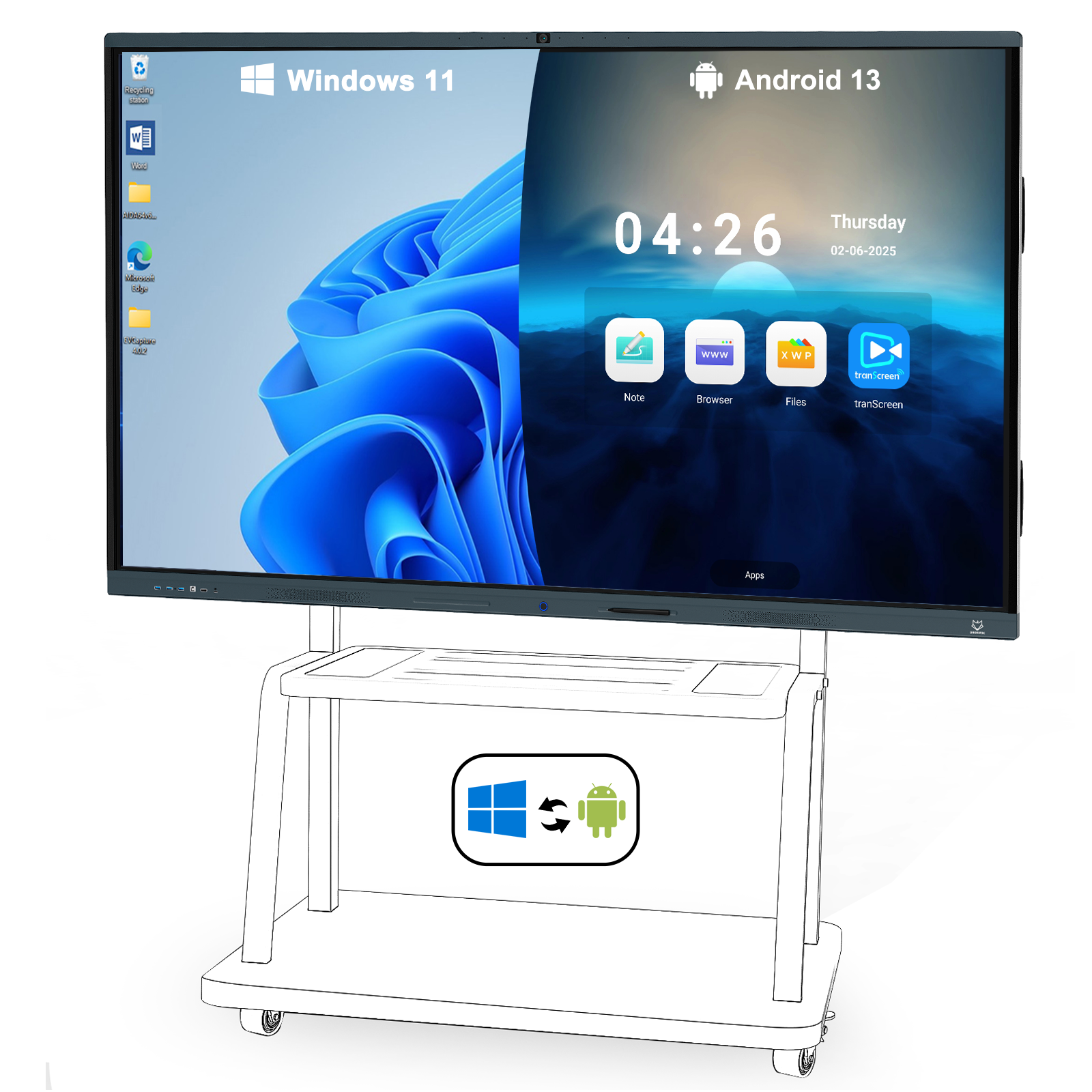
A Windows-based lesson on an OPS computer is not evidence that the same lesson runs inside the display’s Android environment. Choose which environment is the school’s normal starting point and test that one first. Additional modes can be evaluated afterward, with their own application and connection details. This keeps a broad feature list from obscuring the simple classroom routine the buyer needs.
End the trial by keeping the result, closing the session and retrieving it. Ask what the school needs to retain: an editable board, an annotated document or a flat image for sharing. These outputs are not interchangeable. A saved screenshot may communicate the lesson’s result but will not necessarily preserve movable objects, separate pages or the original file’s editing structure.
Microsoft’s saving guidance describes automatic saving for its Whiteboard service, while its export instructions describe creating an image. The distinction is useful when writing the acceptance requirement: name the required output and then demonstrate reopening or viewing it. Do not assume that “save” in every classroom application means the same destination, ownership or file format.
Use demonstration content without student information for this exercise. Confirm which account owns the saved material and which person can retrieve it after the sample has left the showroom. If a vendor account was used to make the demonstration convenient, repeat the relevant steps with the school’s proposed account arrangement before accepting it as the delivery setup.
Finally, prepare the room for another teacher. Close the lesson, remove the visiting laptop and demonstrate the intended end-of-session routine. Check that private files or accounts are not left open and that the next user reaches the agreed starting screen. These are operational observations for the buyer to record, not a promise that the display automatically handles every account or data-retention requirement.
If a trial stops at one action, keep that action in the approval record. A document that opens on the vendor’s demonstration computer but fails on the school’s intended setup is still unresolved for this order. The supplier may propose a different application, an adjusted connection or another computer configuration. Each proposal changes something the teacher or IT team must support, so make the change visible before repeating the affected task.
Distinguish a product requirement from a training issue. A teacher who has never used an application’s export command may simply need a short instruction. An application that cannot produce the required editable format presents a different purchasing decision. Ask the demonstrator to show the complete route once, then let the teacher perform it. This helps the buyer decide whether the final package needs documentation, a different tool or a revised expectation about the output.
Keep the successful resolution with the sample record. Identify the approved software version and the actual computer mode; avoid a general note saying that the issue was fixed. Where a substitute changes cost, licensing or administration, have the appropriate school contact accept that change. A useful manufacturer demonstration leaves the buyer able to explain both what works and what must be included to make it work in the delivered classrooms.
A useful trial record connects the actions to one identifiable configuration. Include the display model, computer mode, application version, connections and accessories used. Record exceptions with the action affected, such as a document that imports incorrectly or a laptop that displays video but does not respond to touch. A photograph of a successful opening screen cannot replace those details.
| Lesson moment | Evidence to retain | Record the result |
|---|---|---|
| Open the teaching file | File type, application and starting mode | Did the intended pages and layout appear? |
| Write and involve another participant | Operating mode and the exact annotation task | Could both participants complete the exercise? |
| Use a connected computer | Computer, adapters, video input and touch connection | Did picture, sound and interaction follow the intended device? |
| Keep the finished work | Output format, account owner and retrieval step | Could the teacher reopen or use the result? |
| Hand over the room | Closing and return-to-start routine | Was the next teacher’s starting state predictable? |
LINGHUFOX’s published project workflow includes functional testing and production updates. Ask how the approved lesson configuration will be identified during those checks and which software setup belongs to the supplier or the school’s integrator. This is a request for order-specific evidence, not an assertion that a school application has already been tested at the factory.
Select the interactive whiteboard manufacturer whose offered configuration can complete the school’s actual teaching sequence and whose handover makes that sequence repeatable. Keep unresolved software, connection or saved-file issues visible until they are demonstrated. The purchasing decision should leave the school with a lesson it can deliver again, rather than a demonstration it cannot recreate.
