


Get quote
Get Free Consultation!
We are ready to answer right now! free consultation.
When evaluating an interactive flat panel display manufacturer, ask for the image path and the touch path to be explained separately. A laptop picture can appear on the panel while the laptop receives no touch input. That observation identifies a connection or configuration question to investigate; it does not, on its own, establish which component has failed.
The useful purchasing record connects each source computer to its display input, its touch connection and its intended operating mode. Add any dock, adapter, extender or OPS computer to that record. Then ask for the complete arrangement to be demonstrated with the application your users will run.
The image path carries the computer’s display output to the panel. The touch path carries the panel’s detected input back to the computer that must respond. Some configurations carry these functions through separate connections; an appropriately supported connection can combine them. The manufacturer’s job is to identify what the selected model actually supports.
For example, the LINGHUFOX 65-inch smart board lists a 3840 × 2160 panel, infrared touch and a USB 2.0 touch communication interface. Its front interface list includes HDMI, TOUCH and Type-C connections. These entries make separate questions visible: which input carries the picture, which connection returns touch, and which functions are supported by that Type-C port?
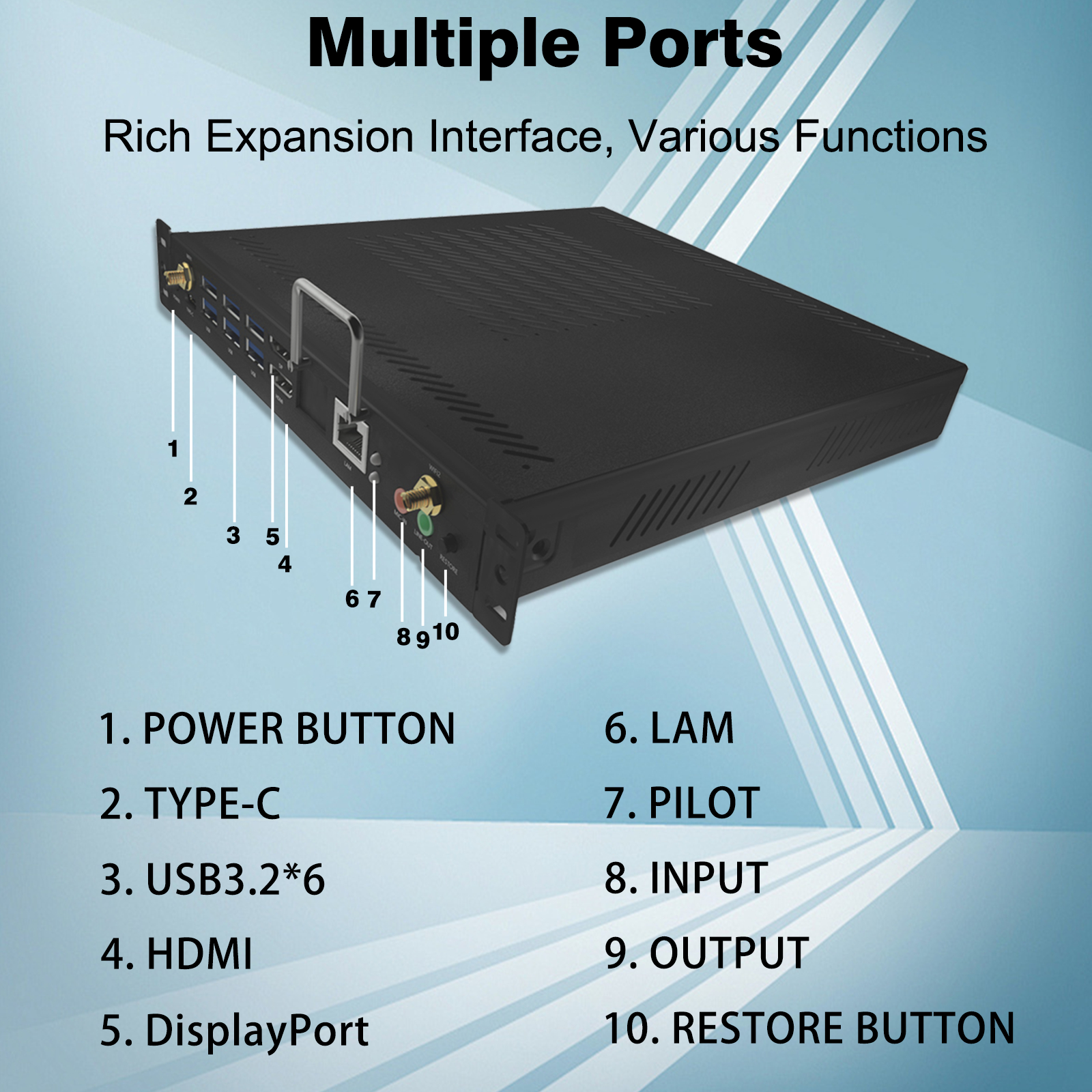
Ask for a port diagram for the offered configuration. A photograph helps users recognise the connectors, while a diagram should explain their roles and any associations between them. Label the intended laptop or room computer, not just a generic computer icon. If two computers remain connected, the record must explain which receives input when the display source changes.
Other manufacturers also document input associations explicitly. SMART’s GX Zero connection guidance describes which video inputs use its side or front touch USB connection. That is an example of the information to request, not a wiring map for a LINGHUFOX display. Use the drawing for the supplied model.
Begin the discussion with the source computer, its output and the display input the user selects. Include any adapter or dock in between. Ask the manufacturer to state the supported signal for that proposed arrangement and show the computer’s actual output settings during the demonstration.
The 75-inch smart board and 86-inch smart board both list a physical resolution of 3840 × 2160. Physical resolution describes the panel. It should not be substituted for the resolution being produced by a particular laptop, adapter and selected input. Record both the panel specification and the demonstrated signal when they matter to the application.
A full-screen promotional photograph may be a poor way to judge small text or a dense working page. Bring a representative diagram, document or application screen. Check that the intended content is visible at its normal working scale and that the user can reach the controls needed for the task. Treat those observations as part of the proposed configuration review.
Keep an unchanged reference configuration while evaluating a more complex room connection. If a direct connection works but the same source through a dock or extended cable path does not, preserve that difference in the record. Change one part at a time with the supplier or local technical team. This gives the investigation a useful comparison without prematurely blaming the panel.
Describe the route that will be installed, including the cable lengths and any wall connection points. Ask whether the demonstrated arrangement represents that route or only a short demonstration cable at a desk. If it differs, identify the remaining check before approving the installation. The buyer needs an answer for the proposed room connection, not just an isolated demonstration of the display.
Also describe the display mode your users need. A presenter who wants a separate working screen may use the computer differently from a teacher who expects the laptop and room panel to show the same content. Demonstrate the intended arrangement, including which screen holds the application and where touch should act.
For a setup using separate video and touch cables, ask the manufacturer to show both ends of the touch connection. A USB socket used for an accessory is not automatically the connection that returns touch to a laptop. Match the port labels and roles to the model’s documentation, including any relationship with the selected video input.
The listed 65-, 75- and 86-inch base models describe infrared touch, a USB 2.0 communication interface and 20 touch points on a connected PC. The PC qualification should remain in the specification review. It does not establish that every onboard application accepts the same number of contacts or that every gesture behaves identically.
There are several useful observations: whether the computer recognises the touch device, whether an ordinary control responds, and whether the intended application performs the required gesture or writing action. Record them separately. A working tap is evidence about that action in that configuration; it is not a complete demonstration of simultaneous input, writing tools or the whole application.
Microsoft’s Windows touchscreen guidance identifies the HID-compliant touch screen under Human Interface Devices in Device Manager and describes its enabled or disabled state. Where Windows is the proposed host, the responsible technical person can use this distinction when investigating recognition. Follow the supplied equipment guidance rather than installing an unrelated driver or changing multiple settings at once.
Ask for a demonstration using the proposed operating system and application version. The LINGHUFOX listings describe HID driver-free touch, but a purchasing brief still needs the actual supported environment. Record any software component required for special writing features separately from basic touch recognition. This helps prevent a general driver claim from becoming an unsupported promise about every application.
Consider a room computer and a visiting laptop that both remain connected. Ask which computer receives touch after the operator changes the picture source. Confirm whether any cable must be moved, whether a setting changes the association, and how the ordinary user recognises the correct state. The answer must come from the proposed model and configuration.
Include a short recovery action in the handover instructions. If users can see the laptop but cannot control it, they should know which input and labelled connection to check and when to call their support contact. A simple recorded connection state is more useful than a vague instruction to reconnect everything.
A Type-C entry in a specification should prompt questions about video, USB data and power separately. The USB Implementers Forum’s terminology guidance explains that USB Type-C, USB data performance and USB Power Delivery are distinct terms, and that product capabilities vary. A connector’s appearance is not a complete description of those capabilities.
For video carried through DisplayPort Alt Mode, the DisplayPort organisation explains how DisplayPort uses the Type-C interface’s Alternate Mode extension. Ask whether the source computer, the selected display port and the proposed cable support the required mode. This reference explains the technology; it does not establish that every LINGHUFOX Type-C port implements it.
Write the promised functions into the proposed configuration. If the supplier offers a single-cable arrangement, identify the supported picture signal, touch return and any specified charging capability. If charging is required, ask for the actual supported arrangement for the chosen laptop. Avoid inferring a power-delivery rating from the presence of Type-C or from a different model’s specification.
The cable belongs in this discussion. Identify the cable being demonstrated and the cable being supplied, along with any adapter. A cable that fits the connector may still be the wrong choice for the promised combination of functions. Ask the supplier to confirm the complete path and document any limitation on the proposed installation route.
Keep a practical alternative in the room plan if appropriate, such as the separately documented video and touch connection. The alternative should be a confirmed supported arrangement that local users can understand. It should not depend on improvising with unidentified cables after equipment arrives.
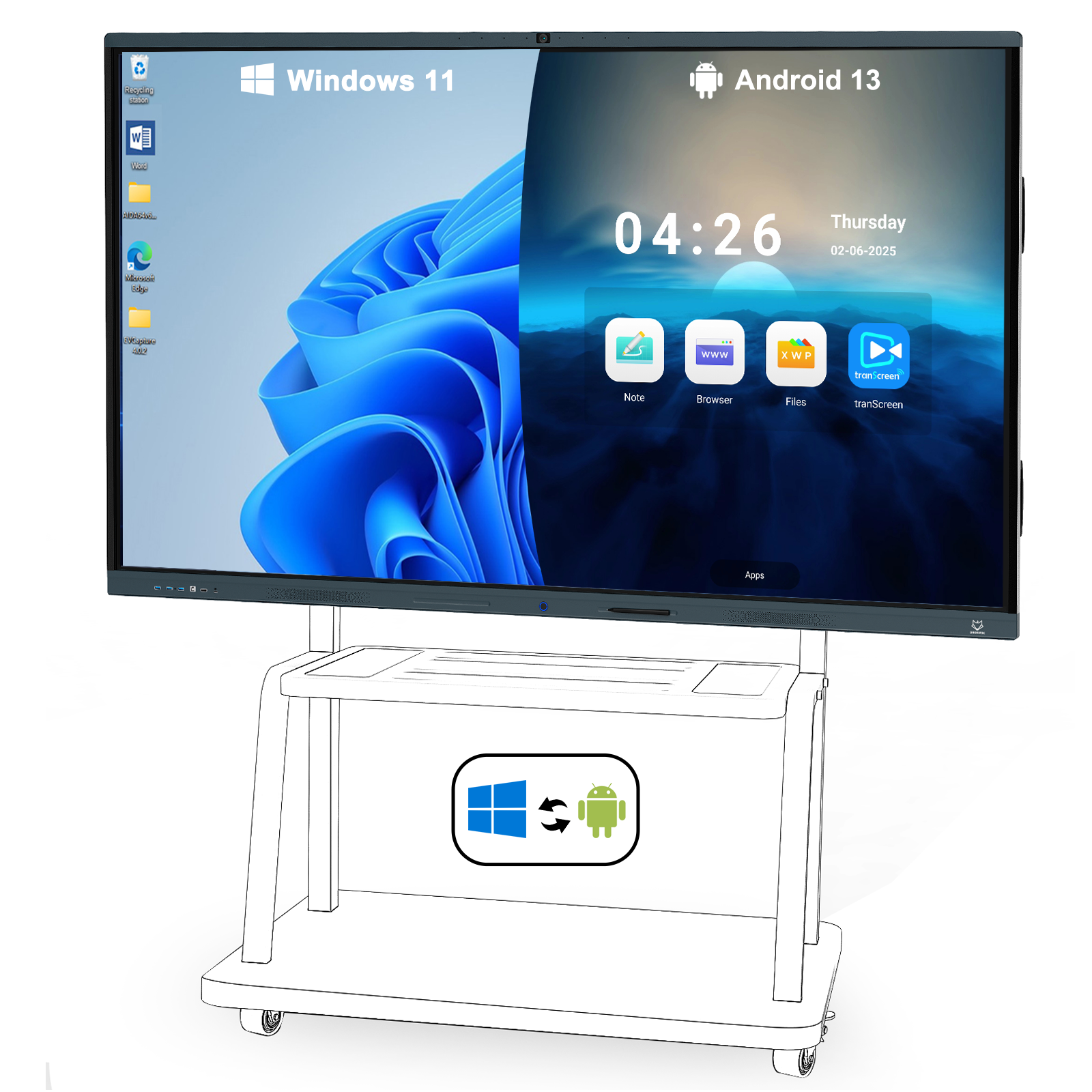
An OPS computer changes where the application runs and how the operator selects it. The 86-inch smart board with OPS lists Windows 11 Pro support with 16 GB RAM and 256 GB storage. Confirm the supplied operating-system licence separately, then ask how the quoted configuration handles display output, touch input and switching to a connected guest computer.
The separately listed OPS mini PC accessory describes a removable computer for compatible displays, without establishing one universal processor, memory and storage build. Confirm the module and display pairing. The presence of an OPS option should not cause the buyer to import the 86-inch model’s computing specification into every other offer.
If the room uses a camera, microphone or another USB accessory, ask which operating system can access it in each source mode. Being able to show a guest laptop on the display is not enough to prove that the laptop can also use all the room’s peripherals. Demonstrate the devices that the intended application needs.
For a room with onboard software, OPS and a guest laptop, choose the ordinary starting mode and describe the transitions users will actually make. Ask what happens to an open application when another source is selected and how the user returns. The purchasing goal is an understandable working configuration, with its dependencies identified before it becomes a classroom or meeting-room support issue.
Use a concise record for every configuration the manufacturer is asked to support. The table below describes what to capture; it contains no invented test results. Populate it with the exact equipment and the observed outcome during the agreed review.
| Record area | What to identify | What to observe |
|---|---|---|
| Source and picture | Computer, output, adapter, cable and selected input | Actual signal and intended content on the panel |
| Touch | Return connection, host and operating mode | Recognition, ordinary input and required application action |
| Type-C offer | Documented video, data and power capabilities | Promised functions with the identified laptop and cable |
| OPS or second source | Selected computer and peripheral ownership | Source change, touch association and return to the normal mode |
| Support reference | Model revision, application version and dated observations | Unresolved limitation, responsible person and agreed next action |
Before closing the review, have an ordinary operator reconnect the agreed laptop and return from another source using the written instructions. Include the normal startup or resume situation the room will use. Record an incomplete result with the same care as a successful one, so the manufacturer and local technical team can resolve a specific reproducible state.
Keep the demonstrated configuration attached to the purchasing decision. If a dock, module, software build or cable changes later, ask whether the affected functions need another check. A useful answer from an interactive flat panel display manufacturer is a clear map of the supplied arrangement and evidence for its intended behavior, with any open compatibility question still visible.
