


Get quote
Get Free Consultation!
We are ready to answer right now! free consultation.

The difficult moment in a meeting room is often the change between users. One presenter leaves with a laptop, the next connects a different device, and the room must recover a usable picture, touch connection and audio arrangement without a technician. A conference room smart board supplier should help you define that changeover before the hardware order is approved.
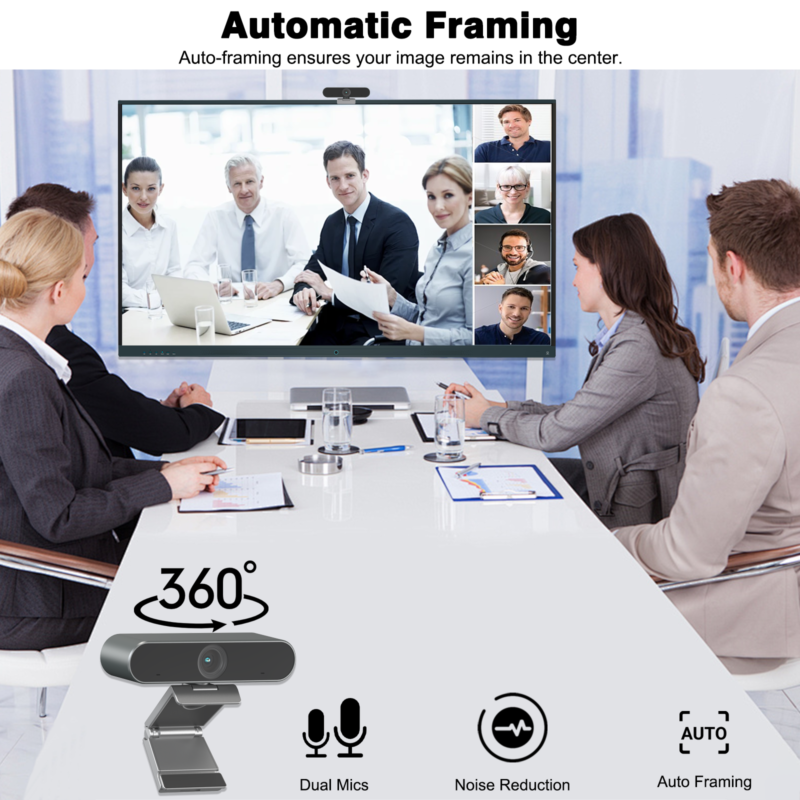
Start by deciding which computer owns the meeting. A guest laptop, the board’s built-in platform and an installed OPS computer are different operating arrangements. LINGHUFOX offers standard boards, camera-equipped models and an OPS configuration, but the right choice depends on the meeting workflow. A camera visible above the screen does not establish that every connected laptop can automatically use it.
In this arrangement, the visitor’s computer runs the meeting application and holds the meeting account. The smart board provides the agreed display and interaction functions. Ask which room devices the guest laptop is expected to use: only the screen, or also touch, speakers, microphone and camera. List those functions individually rather than requesting a vague “single-cable meeting room.”
The standard 65-inch LINGHUFOX board lists HDMI, USB, touch and Type-C connections. That is useful connection information, but it does not prove every function is available through every port or cable. Have the supplier identify the approved route for the quoted model, and test the laptop and adapters the organization intends to support.
The 86-inch OPS board lists a Windows 11 Pro computer configuration with 16 GB RAM and 256 GB storage, plus camera and audio features. In a room-computer arrangement, the organization needs to decide who manages the computer and which account is used. The hardware purchase does not itself supply meeting licences, account policies or administrative ownership.
Identify whether guests share content into the installed computer’s meeting or switch the board to their own computer. These are not the same action. A source change may move the picture to the guest laptop while the call continues elsewhere. The room instructions must explain the intended route so users do not disconnect the device that is actually hosting the meeting.
The 65-inch camera model describes Android 14, a camera with a 4K sensor, 8 GB RAM and 128 GB storage. Evaluate any proposed meeting application on that exact configuration. Confirm installation, licensing, account handling and access to the required devices. Do not infer application approval from the presence of Android or from a successful demonstration on a different model.
Draw a simple connection map showing the host computer and the functions it receives. Give the picture route and touch route separate labels. Add the selected camera, microphone and speakers. Where an accessory or switching device is required, identify its actual model and include it in the quotation. This makes the complete system understandable before it is hidden behind a display or inside a table.
The 75-inch camera board describes wireless casting, OPS expansion and dual-system switching. Those capabilities are starting points for discussion, not proof that the same peripheral routing follows every source change. Ask what changes when the user switches from the built-in platform to OPS or to an external input.
Meeting applications also have their own device selections. Microsoft’s Teams device-settings guidance describes separate speaker, microphone and camera choices. A working room therefore needs the application to select the intended devices, not merely a cable that produces a picture. Available settings can depend on the application and managed environment.
| Function | Question to settle | Record to keep |
|---|---|---|
| Meeting session | Which computer and account host it? | Approved operating arrangement |
| Shared picture | Which input or casting route is selected? | Source and cable or application identity |
| Touch control | Which computer receives the input? | Approved touch-return route |
| Camera and audio | Which devices does the meeting application select? | Device names and permitted fallback |
| End of meeting | Who clears temporary work and restores the room? | Organization-approved reset procedure |
Begin with the documented start state and an approved reference laptop. Join a test meeting, share representative material and verify the functions the quotation includes. Use a non-confidential demonstration account and files. The two-sided meeting acceptance guide helps check what the remote participant receives, rather than judging the call only from the local screen.
Then end that meeting and disconnect the first computer through the approved procedure. Connect a second supported device and repeat the normal entry steps. Observe whether the correct source is selected, whether touch controls the expected computer and whether audio devices remain understandable. Record the actual result instead of assuming the second user inherits the first user’s successful settings.
A business cannot normally test every possible visitor laptop, dock and application. Define the devices and connection methods it will support, then provide a clear alternative for other guests. The supplier should know that range when proposing the configuration. A supported-device list with an honest fallback is more useful than an unlimited compatibility promise.
Keep the approved adapters with the room and label their purpose. If the demonstration used a particular adapter, do not replace it with an unrecorded item during installation and expect identical results. A connection card should show the reference route, the fallback and the person to contact when neither meets the visitor’s requirement.
Test an authorized disconnect and reconnect, a change of source and the normal restart sequence on the sample. These are proposed acceptance exercises, not a report of completed product testing. The relevant question is whether the room can return to the agreed workflow without exposing the previous user’s material or requiring an undocumented setting change.
Do not create a disruptive test on an occupied meeting system. Arrange a preparation session with the responsible IT or integration team. Record the permitted steps and any policy restrictions. A buyer-facing guide cannot authorize bypassing account controls, installing unapproved software or resetting a managed computer merely to simplify a demonstration.
The room’s end state should be observable. It might be the approved home screen, a selected input with no guest connected or the organization’s managed meeting interface. Identify what remains visible after the user leaves and what must be closed or cleared. Do not assume the display automatically removes documents, accounts or casting sessions unless that behaviour has been confirmed for the actual system.
Separate ordinary meeting cleanup from a factory reset. Routine users should not need to erase the device to prepare for the next meeting. Ask the application and IT owners to define the normal session-ending procedure, then confirm that the board and connected equipment support it. Keep administrative recovery instructions separate from the simple user guide.
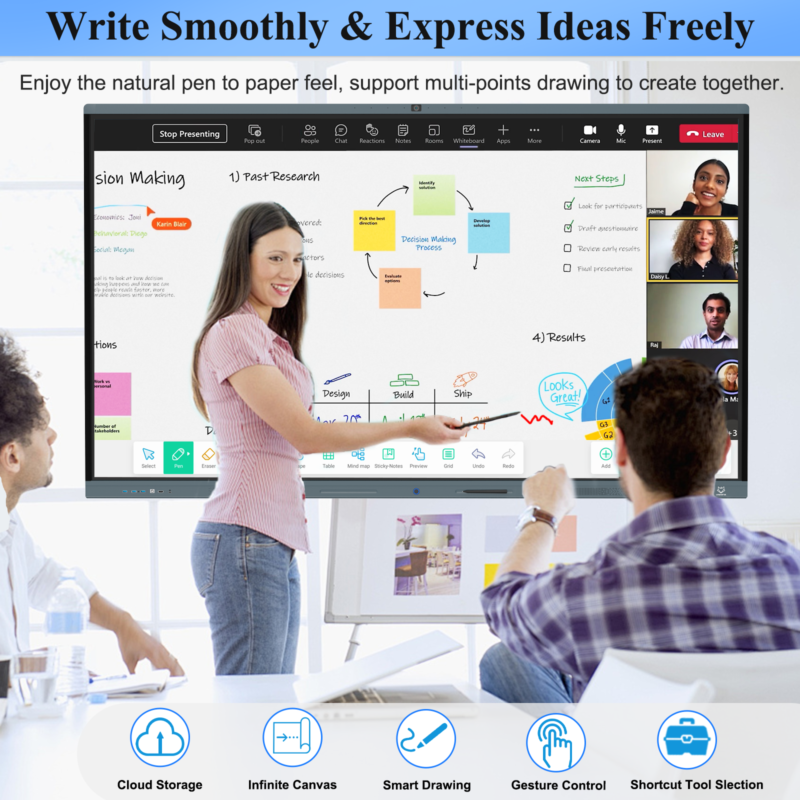
For handwritten material, decide where the result is saved and who can access it. If a shared board stores temporary work, the organization needs a retention and access policy appropriate to its use. The hardware supplier can explain supported functions, but it should not be expected to invent the customer’s information-handling rules or meeting-account structure.
Include updates in the ownership discussion. A software or driver change can alter device names, defaults or available controls. Identify who approves changes and who reruns the affected meeting workflow afterward. Keep the approved configuration record current so that a later support call does not begin from an outdated screenshot of the device settings.
Place the user’s normal steps in the order they are performed. Identify the connection point, source selection, meeting application and required device choices. Add a short end-of-meeting sequence. Use the actual names visible on the accepted configuration. Generic instructions that refer to nonexistent buttons or differently named devices can make a working installation difficult to use.
Keep troubleshooting boundaries clear. A user may be allowed to select the approved source or reconnect an identified cable, while internal service and administrative changes belong to authorized personnel. The room card should lead users to the correct help route rather than encouraging repeated resets or cable experiments that change the accepted configuration.
Ask someone who did not install the system to follow the card during preparation. Record where they hesitate or select the wrong option, then improve the wording or labels. This is a useful proposed usability check, not a numerical claim about time saved. It tests whether the process can be repeated without relying on the installer’s memory.
Keep the accepted room card beside the configuration record, not only on the table. If a replacement cable, camera or computer changes the visible steps, revise both records together. A small label change can otherwise leave the technical file correct while users continue following outdated instructions. The next presenter needs the current process, not the history of how the installer originally made it work.
A board running a meeting application should not automatically be described as a certified room system. Microsoft’s certified-hardware documentation identifies specific systems and peripherals within its program. Confirm any certification claim against the exact supplied configuration. This article does not claim that the LINGHUFOX models discussed hold that designation.
Confirm the included board, computer, camera arrangement, cables, adapters, applications and licences in writing. Use the camera-versus-standard comparison to clarify whether the room actually needs the camera-equipped version. A configuration that suits one meeting process may not suit a room where every visitor brings a different host computer.
Close the purchase with the accepted connection map, start and end states, supported guest range and service owner. Keep any unresolved requirement visible. The room is ready when the next user can reproduce the approved workflow, not simply when the first demonstration produces a good-looking picture.
No such conclusion should be drawn from the camera’s presence alone. Ask how the exact model exposes the camera and audio devices to the intended host computer, and test that route. The quotation should identify any required switching equipment, software or cables. Keep picture, touch and meeting-device access as separate acceptance items.
Only when an installed computer suits the organization’s workflow and support model. A guest-hosted meeting may use a different arrangement. Evaluate the applications, accounts and peripheral routes before deciding. The useful comparison is between complete supported systems, not between a board with a computer and a board without one in isolation.
Rerun the functions affected by the update, including source selection, touch routing, meeting-device choices and the end-of-meeting state. Record the new version and any changed instructions. This preserves a usable support history and prevents the next presenter from relying on settings that no longer match the installed system.
