


Get quote
Get Free Consultation!
We are ready to answer right now! free consultation.
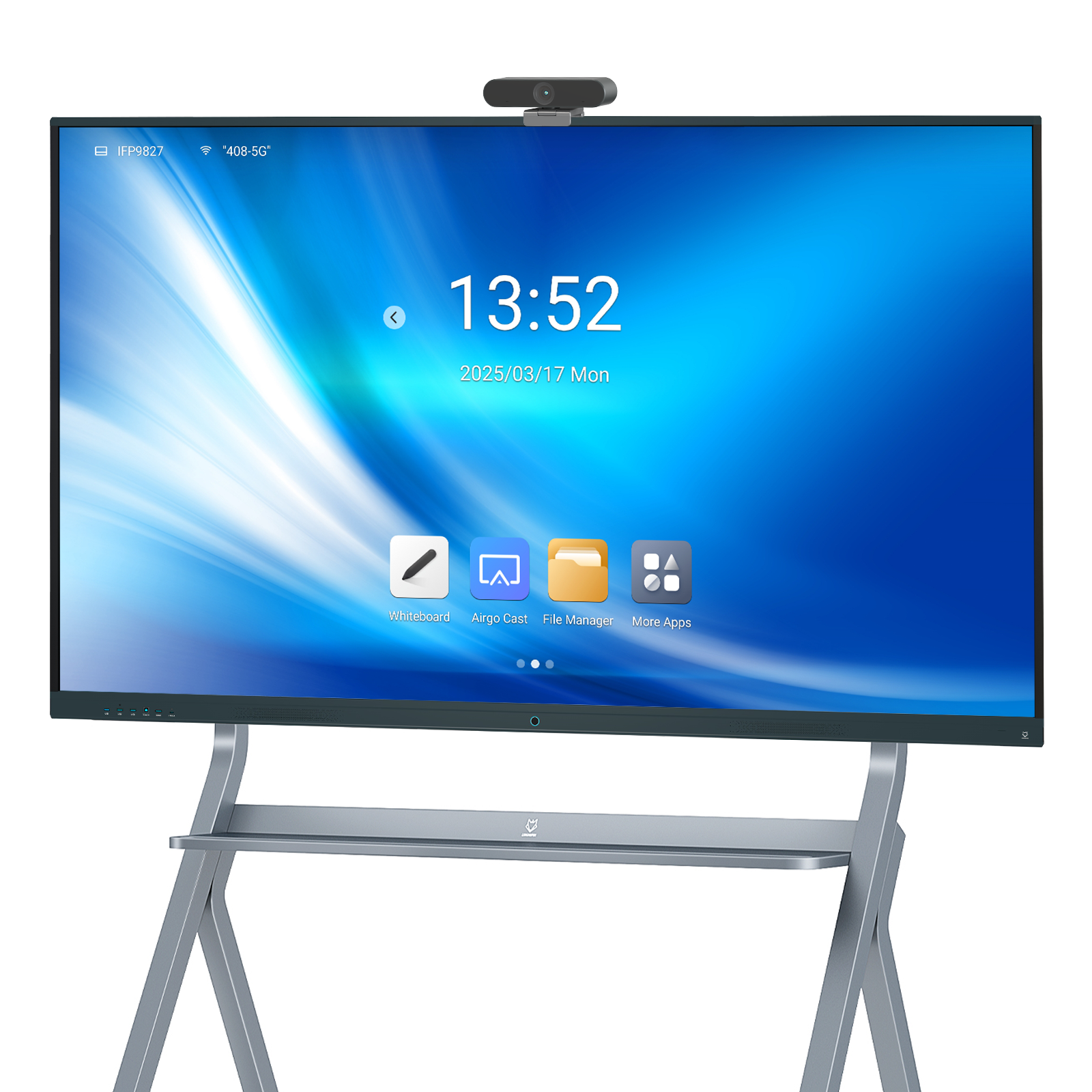
Before selecting an interactive whiteboard supplier, decide how a classroom will return to service when a pen is missing, a cable is damaged or a computer stops working. The useful question is not simply whether a warranty exists. It is which items can be replaced locally, what evidence the supplier needs and who owns the work between diagnosis and the next usable lesson.
A support handover should accompany the hardware decision. LINGHUFOX’s range includes standard interactive boards, models with cameras and an 86-inch OPS-equipped version. The service requirements are not identical. A replaceable external cable, a plug-in computer and a fault inside the display assembly need different approval routes. Procurement can make those routes clear before the equipment reaches the school.
Separate the installation into four parts: the panel, its computing source, connected accessories and the school’s network or applications. This prevents a failure in one part from being described as a failure of the whole board. For example, an image may display normally while a connected laptop does not accept touch. Replacing the panel before checking the approved signal route can create unnecessary transport and removal work.
The standard 65-inch LINGHUFOX board lists an infrared touch system, a USB touch communication port and support for 20 touch points on a connected PC. These details give the technician a starting boundary: display output and touch input should be checked separately. They do not establish that every connected operating system, dock or application has already been tested with the customer’s installation.
The picture-without-touch troubleshooting guide explains that separation in more detail. Keep such a guide beside the installed configuration record. It should help staff perform permitted checks, not encourage them to dismantle electrical equipment. Internal repairs, wall removal and component replacement belong to authorized personnel using the correct service instructions.
The standard 55-, 65- and 75-inch board specifications list a wall bracket, remote control, stylus, antenna and power cable. These are useful headings for the handover inventory, but the final packing list should confirm the supplied quantities and versions. Photograph the accessories when the sample is approved. An image of the correct pen or remote can be more useful to a school administrator than an unexplained internal part number.
Ask the supplier which accessories can be ordered separately and which are tied to a particular board revision. Do not assume that a remote from another diagonal or a visually similar stylus provides every required function. A passive writing tool, a magnetic attachment and a button-operated accessory are different purchasing requirements. The exact supported tool should be recorded rather than inferred from a generic “pen included” description.
Cables deserve their own labels. The standard board lists HDMI, USB, touch and Type-C connections, but the role of each supplied cable should be established during acceptance. Keep a known-good cable for the approved external-computer arrangement when appropriate. Mark it for that use so it does not disappear into a general classroom charging drawer and get replaced by a cable with different capabilities.

The 65-inch camera model describes Android 14, 8 GB RAM, 128 GB storage and a camera with a 4K sensor. Record these details separately from the standard 65-inch version. A camera complaint may concern framing, an application’s selected input or the hardware itself. Capture the application and selected devices before deciding which service route applies.
The 86-inch OPS board adds a computer to the support scope. Its published configuration describes Windows 11 Pro, 16 GB RAM and 256 GB storage. The replacement plan should state whether a computer fault is handled by module replacement, approved repair or another agreed process. Confirm processor identity, operating-system activation responsibility and recovery media for the actual supplied module.
Do not buy an unspecified spare OPS computer simply because it has the same connector category. Ask for compatibility confirmation against the delivered display and module. Include the mechanical fit, power arrangement, thermal requirements and supported firmware in that discussion. Any proposed module change should be checked on the intended board before it becomes the fallback for an entire campus.
| Item | Information to request | Decision owner |
|---|---|---|
| Pen, remote and cable set | Part identity, permitted substitutes and reorder method | School support lead and supplier |
| Camera system | Supported connection, diagnostic steps and replacement boundary | Meeting-system integrator |
| OPS computer | Compatible module, recovery image and application responsibility | School IT and supplier |
| Internal display components | Authorized repair route and evidence required | Qualified service provider |
| Mount or mobile stand | Approved model, installation documentation and inspection route | Qualified installer |
Create a simple support form before the rollout. Its first fields should be display model, serial number, room and installed configuration. Add the computer or OPS identity, operating-system version and application involved. A photo of the equipment label helps prevent a fault report from being attached to the wrong device when several similar boards are installed nearby.
Describe the expected result and the observed result in separate sentences. Record whether the problem occurs in the board’s local whiteboard application, on the connected computer or in both. Include the selected input and any adapters in the connection. A short recording can demonstrate an intermittent problem, but it should avoid capturing student information, private meeting content or account credentials.
Ask the supplier to specify the permitted diagnostic sequence for the delivered model. Keep a record of changes already tried so the next technician does not repeat them or mistake a changed setting for the original condition. Do not reset the whole system merely to create a clean screenshot; a reset may remove information needed to understand the problem and may affect school-managed settings.
Routine care should also be model-specific. SMART’s maintenance guidance illustrates why infrared sensor areas, screen coatings and ventilation require different care. That document applies to SMART hardware, not to LINGHUFOX cleaning approval. Obtain the appropriate LINGHUFOX instructions and approved materials rather than transferring a cleaner or maintenance interval from another manufacturer’s product.
LINGHUFOX’s project-support description includes technical guidance, product warranty and post-delivery support. Convert those service categories into order-specific responsibilities. Ask which faults are covered, what documentation is required and how a claim is approved. A response commitment, a replacement decision and a delivery date are different events and should not be treated as the same promise.
For an overseas school, the return route can matter as much as the component cost. Establish whether a failed unit must return, whether a replacement component may be supplied and who handles local removal, packing, freight and reinstallation. Request the approved packaging procedure. Do not discard the transport materials until the organization has decided how future moves and returns will be managed.
Choose any spare-unit quantity from the consequences of downtime and the agreed supply route. There is no universal percentage that suits every campus. A single shared spare may be unsuitable when the installed boards use different mounting patterns, computer configurations or cameras. Map each proposed spare to the rooms it can serve and document any additional work needed to use it there.
For a repeat order, ask about component revisions and continued availability. The useful answer is a documented substitution and approval process, not an unsupported promise that every part will remain stocked indefinitely. A changed remote, computer module or controller may be acceptable after testing, but it should not arrive as an unannounced substitute for the approved service stock.

The teacher’s guide should explain startup, the approved source selection, basic writing, saving through the school’s workflow and shutdown. Keep it brief enough to use during a lesson. Avoid burying these steps inside a procurement file containing serial-number schedules, freight documents and service terms. Different readers need different levels of detail.
The technician’s record should contain the accepted configuration, diagnostic route, manuals, accessory identities, recovery information and service contact details. The supplier and school should agree where updated documents are stored. The classroom package guide provides a useful companion when checking what was included and what remained the responsibility of the local integrator.
Close the handover by performing the permitted recovery steps on the sample system. Confirm that staff can identify the device, select the correct guide and report a problem without guessing. This is a proposed handover exercise, not a claim of completed field testing. Its value is in revealing missing information while the purchasing team can still resolve it.
Computer recovery deserves a separate handover entry. Ask who supplies the approved operating-system image, which applications it contains and how the school restores its own settings afterward. Store recovery material in an access-controlled location chosen by IT, rather than placing shared administrator credentials in a public user manual. A spare computer is not ready for teaching simply because it powers on.
For each replacement, retain the old and new part identities, the reason for the change and the check performed after installation. Record whether the approved application, camera route or touch connection changed. This small history helps distinguish a new fault from a configuration difference and gives the purchasing team a reliable basis for a later repeat order.
Review the support pack at the end of the initial rollout. Remove superseded instructions from ordinary classroom access, while preserving the technical history where the support team can find it. Confirm that the supplier contact and local service owner are still correct. The result should be a usable service process with clearly assigned responsibilities, not a folder of documents that nobody knows how to apply.
No. Warranty coverage and immediate classroom availability answer different questions. A covered replacement can still require diagnosis, approval and transport. Decide which inexpensive, compatible accessories should be held locally, then confirm their identities and reorder route. Do not assume a spare is necessary or interchangeable until the actual classroom configuration has been considered.
Only an appropriately authorized and qualified service provider should perform work that requires internal access or display removal. The support plan should distinguish safe user checks from technician procedures. Request model-specific instructions and warranty authorization. A procurement article cannot establish the electrical, structural or service requirements for a particular installation.
The installed configuration record connects the room to the exact display, computer, accessories and accepted workflow. Keep it current after any replacement. Without that record, even a responsive supplier may receive incomplete information and send the wrong part or instructions. With it, the next support conversation starts from the equipment actually in the room.
