


Get quote
Get Free Consultation!
We are ready to answer right now! free consultation.
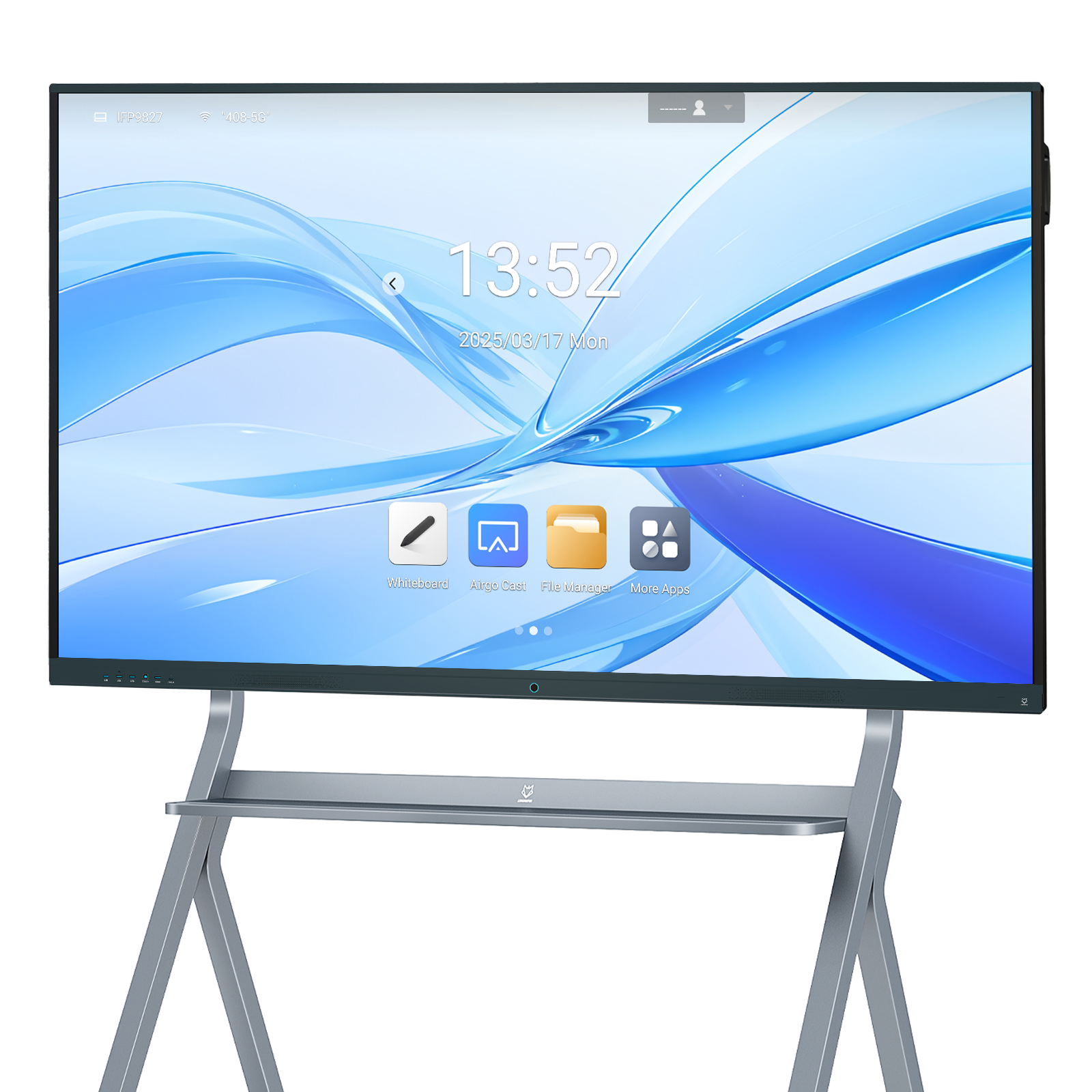
When an interactive whiteboard shows a computer’s picture but does not respond to touch, first identify which part of the system is failing. A working image confirms that a video path is active. It does not confirm that touch information is reaching the same computer or that the current application is accepting it. Check the board’s own interface, the selected input and the touch connection before treating the display as a failed unit.
This guide is for a room operator or IT technician assessing LINGHUFOX configurations with ordinary controls and accessible connections. It does not describe opening a cabinet, removing an energized OPS module or repairing internal electronics. Record what works before changing the setup. If a lesson or presentation is in progress, preserve its files and arrange a suitable pause before restarting equipment.
Write down the observed symptom in plain terms. “No touch” may mean that a pen cannot draw in one application, a finger cannot select anything, or touch moves a pointer on the wrong display. Those observations lead to different checks. Identify whether the image continues to change normally, whether the computer responds to its own mouse and which input is selected on the board.
Where the model provides an accessible built-in interface, use its normal controls to check a simple touch action there. Then return to the connected computer and try a similarly simple selection. Use the supplied remote or approved control method if touch is unavailable. Do not assume that every model uses the same menu names or that a control described for another manufacturer’s screen exists on this one.
The 65-inch smart board and 75-inch smart board list an Android environment alongside connected-PC touch use. This makes the distinction useful for those offered configurations. Record which environment you actually tested. A successful Android selection and a failed Windows selection should not be combined into a report saying that the entire panel is unresponsive.
| What you observe | Next area to investigate |
|---|---|
| Board interface responds; connected PC does not | Selected source, touch-data connection and host recognition |
| Simple PC controls respond; one app does not draw | Application tool, input mode and supported workflow |
| Touch affects a different screen | Computer display arrangement and touch association |
| Response fails across the tested environments | Model-specific controls, external conditions and supplier-guided diagnosis |
The standard 75-inch listing names HDMI connections for the display and a USB 2.0 communication port for its touch system. Its front-interface list also distinguishes HDMI from a TOUCH port. These are useful clues for tracing the installation: the cable that delivers the computer image is not automatically evidence that the required touch-data connection is present and correctly assigned.
Identify the selected video input, follow its cable to the source computer and then identify the touch route for that same setup. A room PC and a guest laptop may both be connected to the installation. If the video was changed to the guest while the touch route remained with the room computer, the visible picture alone would not reveal that mismatch. Treat this as a possibility to check, not a diagnosis made without inspecting the actual wiring.
SMART’s display-support documentation illustrates the importance of using the USB connection associated with the selected video source. Port assignments are model-specific, so obtain the equivalent connection information for the actual LINGHUFOX build. Do not copy another brand’s connector numbers, cable limits or software requirements into the room’s instructions.
Inspect accessible connectors for an obviously loose connection and compare the cable route with the accepted installation record. If the setup uses a hub, dock or extender, document it before simplifying the path under the installer’s guidance. SMART’s touch-troubleshooting guidance includes checking the USB data path and intermediate devices. That supports a controlled isolation check, not a promise that every extender is unsuitable.
Change one element at a time and repeat the same simple action. If an approved direct connection works but the normal extended route does not, retain that observation for the integrator. Do not replace several cables and change inputs simultaneously, then report an unexplained success. The supplier needs to know which comparison altered the result so the accepted permanent configuration can be identified.

Once the intended connection is identified, check the host using its ordinary keyboard or mouse. The standard 65-inch and 75-inch listings describe HID driver-free touch and support for 20 touch points on a connected PC. That description does not mean that every host state, operating-system configuration or application is automatically correct. Verify recognition on the computer actually used in the room.
Microsoft’s touchscreen controls identify the HID-compliant touch screen entry in Device Manager under Human Interface Devices. An authorized IT technician can inspect whether the expected device is present and enabled. If it is absent or reports an error, record the message and the connection used. Do not install an unrelated display driver merely because its download page includes the word “touch.”
If the host recognizes touch but the interface remains unresponsive, save work and follow the appropriate restart procedure. Microsoft’s troubleshooting guidance starts with restarting Windows and then checking relevant updates. On a managed room computer, coordinate updates with the administrator and use the software approved for that installation. A support article for Windows is not an instruction to change the board’s firmware.
After a restart or approved update, repeat the same baseline action before reopening the full lesson or presentation. Record whether touch is recognized immediately and whether it remains associated with the intended display. If the symptom returns only after a particular application, dock or screen arrangement is introduced, preserve that sequence. It is more useful than reporting that the problem occurs “sometimes.”
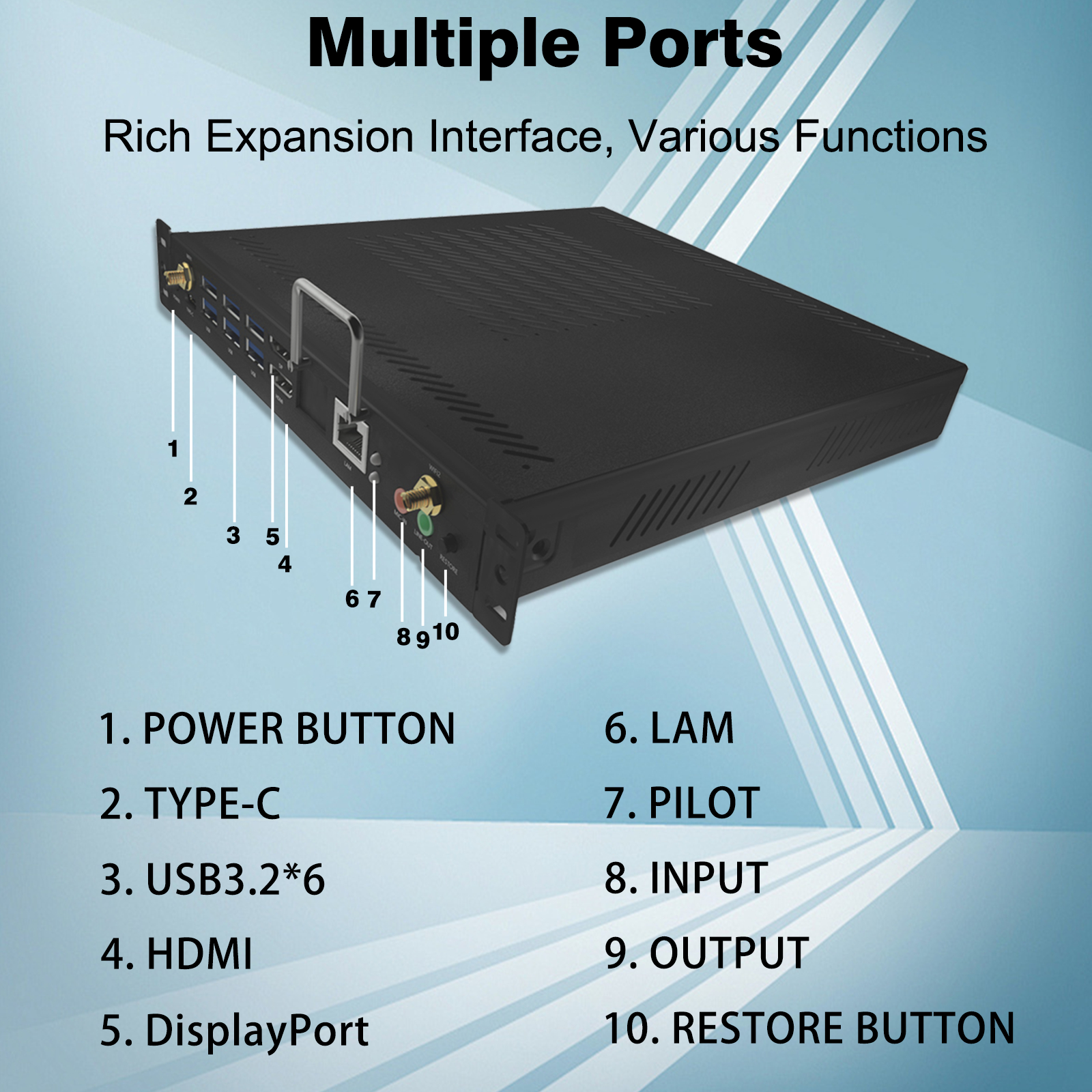
For an OPS configuration, identify which computing environment is currently providing the image. LINGHUFOX’s 86-inch smart board with OPS lists a 3840 × 2160 display and an OPS option with 16 GB RAM and 256 GB storage supporting Windows 11 Pro. A board showing its built-in environment is not necessarily showing that Windows host. Confirm the selected source through the model’s normal operating procedure.
The separate OPS mini PC page describes a removable computing form factor for compatible displays, Windows support and cooling provisions. Its removable construction is not a reason for a room user to pull it out as an initial troubleshooting step. If diagnosis points toward the module or its internal connection, give the supplier the observed behavior and obtain the servicing procedure for that specific installation.
If a finger can select ordinary controls on the connected PC but a pen does not draw in the intended app, investigate the app’s current tool and input behavior. Selection, scrolling and writing are not the same operation. Check whether the correct writing mode is active and whether the proposed software supports the intended pen or finger workflow. Do not equate a program remaining in selection mode with a failed touch frame.
Compare the application with a simple supported action in the same environment. If one works and another does not, record both applications and their versions for the software owner. The catalogue’s 20-point PC support establishes a touch-system specification; it does not guarantee that every app supports twenty simultaneous writers or handles every gesture in the same way.
A response that appears in the wrong place is different from no response. Note whether the pointer appears on another computer display, whether the whole touch area is offset or whether only a region behaves differently. Capture the display arrangement and current input before changing them. Ask the supplier or integrator for the correct touch-association or calibration procedure for the installed configuration.
Do not begin calibration simply because one app has small or unusual controls. First confirm that the symptom affects an ordinary touch action in the same environment. An application layout issue and a consistently displaced touch coordinate need different remedies. A useful support description identifies the area and the repeated action that demonstrates the problem without requiring the technician to infer it from a vague photograph.
The standard 65-inch and 75-inch tables list the panel’s 3840 × 2160 physical resolution separately from the touch system’s 4096 × 4096 positioning resolution. Do not use the second figure as a proposed computer video setting. The fields describe different functions in the product specification. Retain the approved display arrangement and ask the integrator to identify any mapping issue using the correct model procedure, rather than experimenting with an unrelated custom image resolution.
The standard models use infrared touch. Keep objects away from the working surface and frame in accordance with the product’s normal usage instructions, and note any change in lighting around the time of the symptom. ViewSonic’s infrared-touch guidance explains that strong lighting can affect that class of touch system. This is a reason to report the environment, not proof that lighting caused the fault in a particular LINGHUFOX board.
If a clearly repeatable area remains unresponsive across the approved environments and connections, stop making unrelated software changes. Record the conditions and ask for model-specific support. Avoid opening the touch frame, applying improvised cleaning chemicals or attempting an unsupported firmware change. Those actions would introduce new variables while the original symptom is still being established.
A useful report includes the exact board model, active computing environment, selected input, connected computer and operating-system version. Add the cable and intermediate-device arrangement, whether the board’s own touch interface works, and the simplest action that fails. Include any visible host error message. A short demonstration of the symptom is more informative when its source and connection are identified.
State what changed immediately before the fault, such as a different laptop, a new dock, an application update or a rearranged room. Then list only the checks actually performed and their results. Do not describe a proposed cable swap as a completed test. LINGHUFOX’s accessory range helps identify the relevant computing or peripheral component, but compatibility and replacement decisions still depend on the actual installed build.
For a changing symptom, repeat the same action after returning to the starting configuration and note whether the result is consistent. Include the relevant input name and host in each entry. This keeps a successful guest-laptop check from being mistaken for proof that the room’s OPS configuration has also been restored.
The next action should follow that evidence. A missing touch-data path calls for a connection review; an app-specific symptom goes to the software owner; a persistent board-wide problem needs the supplier’s diagnosis. This approach gives an interactive whiteboard a fair assessment while preserving the configuration information required to put the room back into service.
